Changing your DNS server is one of the quickest, free tweaks you can make to your internet connection. It can make websites start loading faster, block malicious sites and improve privacy. But it won’t magically double your download speed. This guide explains what DNS does, compares the best public DNS servers, and shows you how to change DNS on any device in a couple of minutes.
What is DNS?
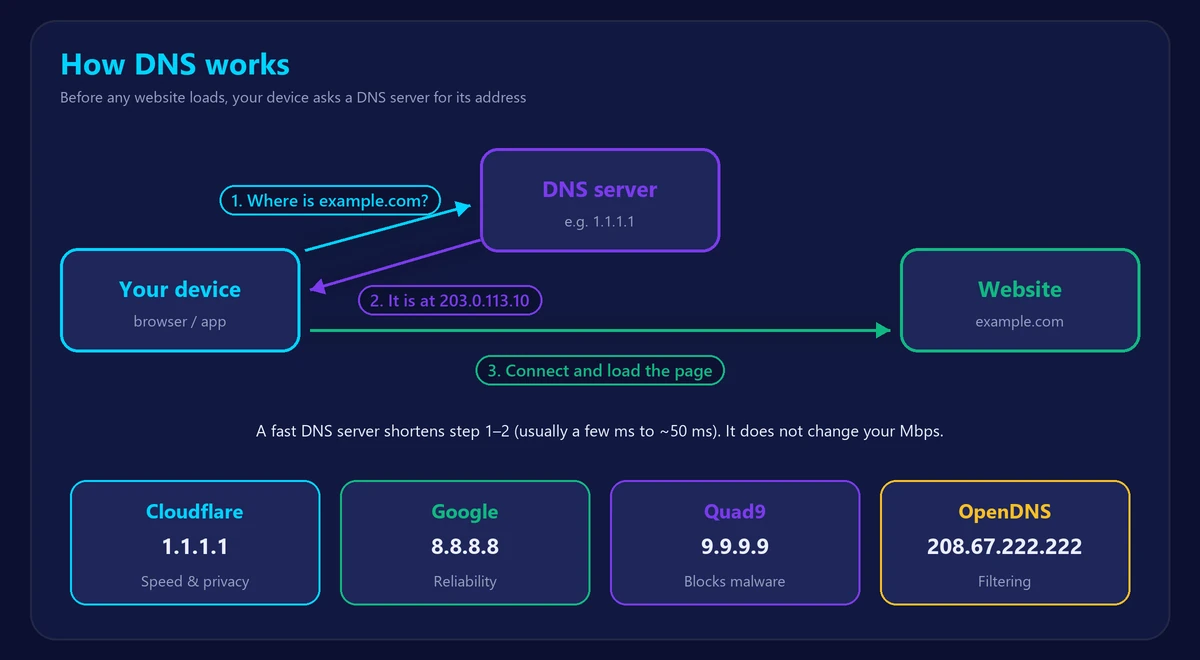
DNS (Domain Name System) is the internet’s phone book. When you type a website name like example.com, your device asks a DNS server for the matching IP address before it can connect. This lookup usually takes a few milliseconds – but a slow or overloaded DNS server can add noticeable delay to every new website you open.
By default, your devices use the DNS server provided by your internet provider. Public DNS services are often faster, more reliable and offer extra features such as malware blocking.
Will changing DNS make my internet faster?
It depends on what you mean by “faster”:
- Website start time: yes, potentially. A faster DNS server shortens the delay before a page starts loading, especially for sites you haven’t visited recently.
- Download and streaming speed: no. DNS only finds the address; it doesn’t carry your data. Your Mbps stay the same.
- Gaming ping: no. Once a game is connected to its server, DNS is no longer involved.
If your speed test results are low, the cause is elsewhere – see our guide on why your WiFi is slow.
The best public DNS servers
| Provider | Primary DNS | Secondary DNS | Best for |
|---|---|---|---|
| Cloudflare | 1.1.1.1 | 1.0.0.1 | Speed and privacy |
| Google Public DNS | 8.8.8.8 | 8.8.4.4 | Reliability |
| Quad9 | 9.9.9.9 | 149.112.112.112 | Security (blocks malicious domains) |
| Cisco OpenDNS | 208.67.222.222 | 208.67.220.220 | Optional filtering and parental controls |
Cloudflare (1.1.1.1) is consistently among the fastest DNS resolvers worldwide and has a strong privacy policy. Google (8.8.8.8) is extremely reliable and widely used. Quad9 automatically blocks domains known to host malware and phishing. OpenDNS offers configurable content filtering, popular with families.
Cloudflare also offers 1.1.1.3 and 1.0.0.3, which block malware and adult content – an easy family-friendly option.
Which DNS is fastest for you?
The fastest DNS depends on your location and your provider’s network. Cloudflare and Google are excellent choices almost everywhere, but your provider’s own DNS can sometimes be quicker because it is physically closer. A free tool such as GRC’s DNS Benchmark (Windows) lets you test several DNS servers from your own connection and pick the winner.
How to change DNS
On your router (all devices at once)
- Log in to your router – usually at
192.168.1.1or192.168.0.1(see our router login guide). - Find the DNS settings, often under Internet, WAN or DHCP.
- Enter the primary and secondary DNS addresses and save.
- Restart devices or reconnect them to WiFi so they pick up the change.
Note: some provider routers don’t allow DNS changes. In that case, change it on each device instead.
Windows 11
- Open Settings → Network & Internet → WiFi (or Ethernet) → your network → Hardware properties.
- Next to DNS server assignment, click Edit and choose Manual.
- Turn on IPv4, enter the preferred and alternate DNS, and save.
Mac
- Open System Settings → Network → your connection → Details → DNS.
- Click + and add the DNS addresses, then click OK.
iPhone and iPad
- Open Settings → WiFi and tap the (i) next to your network.
- Tap Configure DNS → Manual, remove the existing servers and add the new ones.
Android
- Open Settings → Network & internet (or Connections) → Private DNS.
- Choose Private DNS provider hostname and enter
one.one.one.one(Cloudflare) ordns.google(Google).
Android’s Private DNS also encrypts your DNS requests, which improves privacy on public WiFi.
Encrypted DNS: DoH and DoT
Traditional DNS requests are sent in plain text, so your provider or anyone on a public network can see which sites you look up. DNS over HTTPS (DoH) and DNS over TLS (DoT) encrypt these requests. Modern browsers such as Chrome, Firefox and Edge can enable secure DNS in their privacy settings, and Android supports DoT through Private DNS.
Frequently asked questions
Is it safe to change DNS?
Yes, with a reputable provider like those above. You can always switch back to automatic DNS in the same settings.
Is 1.1.1.1 better than 8.8.8.8?
Both are excellent. Cloudflare is often slightly faster and has a stricter privacy policy; Google is equally reliable. Test both from your connection if you want the absolute fastest.
Can DNS reduce lag in games?
No. DNS only matters while connecting. To improve gaming, focus on ping and jitter – check them with our ping test and use a wired connection.
How do I check whether it worked?
Visit a few websites you haven’t opened recently – they should start loading at least as quickly as before. Then run our speed test to confirm your connection is healthy overall.