Your router probably broadcasts on two bands – 2.4 GHz and 5 GHz – and newer models add 6 GHz. Connecting to the right one can double your WiFi speed in some rooms or fix constant dropouts in others. This guide explains 5GHz vs 2.4GHz WiFi in plain English and tells you exactly which band to use for each device.
The short answer
- Use 5 GHz for devices in the same room or nearby rooms: phones, laptops, TVs, consoles. It’s much faster and less crowded.
- Use 2.4 GHz for devices far from the router or behind several walls, and for most smart-home gadgets.
- Use 6 GHz (WiFi 6E/7) for supported devices close to the router – it’s the fastest and least congested of all.
2.4 GHz vs 5 GHz vs 6 GHz compared
| 2.4 GHz | 5 GHz | 6 GHz | |
|---|---|---|---|
| Range | Longest | Medium | Shortest |
| Through walls | Best | Good | Weakest |
| Typical speed | Slowest | Fast | Fastest |
| Interference | High (neighbors, microwaves, Bluetooth) | Low | Very low |
| Non-overlapping channels | 3 (1, 6, 11) | Many | Many, very wide |
| Device support | Almost every device | Most devices since the 2010s | WiFi 6E and WiFi 7 devices only |
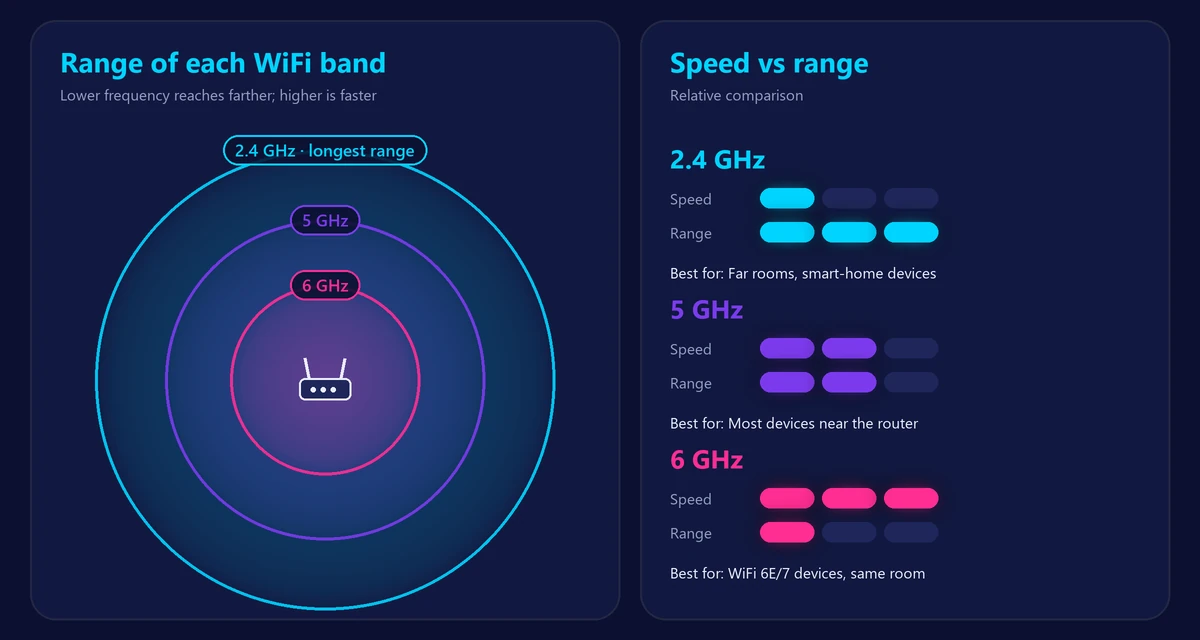
Why 5 GHz is faster
The 5 GHz band has much more spectrum available, which allows wider channels that carry more data at once. It is also used by fewer devices and isn’t affected by microwave ovens or most Bluetooth gadgets. In an apartment where dozens of neighbors share the 2.4 GHz band, switching to 5 GHz is often the single quickest way to fix slow WiFi.
Why 2.4 GHz reaches farther
Lower frequencies travel farther and pass through walls, floors and furniture more easily. That’s why the 2.4 GHz network often still shows signal in the garden or the far bedroom when 5 GHz has dropped out. The trade-off is lower speed and more interference. Many smart plugs, bulbs and cameras only support 2.4 GHz for this reason.
Which band should each device use?
| Device | Best band |
|---|---|
| Phone or laptop near the router | 5 GHz (or 6 GHz if supported) |
| Smart TV or streaming box | 5 GHz – or better, Ethernet |
| Game console | Ethernet first, then 5 GHz |
| Device in a distant room or the garden | 2.4 GHz |
| Smart plugs, bulbs, many cameras | 2.4 GHz |
How to switch bands
Many routers use band steering: one network name for all bands, with the router choosing for each device. This usually works well. If your router shows separate names (for example “Home” and “Home_5G”), simply connect nearby devices to the 5 GHz network.
If a device keeps picking the slow band, you can give the bands different names in your router settings (see our router login guide) and connect manually. Smart-home devices that only support 2.4 GHz may need the bands separated during setup.
Test the difference yourself
Stand in the room where you use WiFi most, connect to the 2.4 GHz network and run our speed test. Then switch to 5 GHz and test again. Use the band that gives the best result in each room. If both are weak, your router may be in the wrong place – see how to boost your WiFi signal or whether you need mesh WiFi or an extender.
Frequently asked questions
Is 5 GHz always better?
Only when the signal is strong. Far from the router, a strong 2.4 GHz signal can be faster and more stable than a weak 5 GHz one.
Is 5 GHz WiFi the same as 5G?
No. 5 GHz is a WiFi frequency band; 5G is a mobile network technology. They are completely unrelated.
Should I turn off 2.4 GHz?
Usually not. Many smart-home devices need it, and it provides coverage where 5 GHz can’t reach. Keep both on and let devices use the best one.
What about 6 GHz?
The 6 GHz band, available on WiFi 6E and WiFi 7 routers, offers even more speed and less interference, but with shorter range. Learn more in our guide to WiFi 6 vs WiFi 6E vs WiFi 7.