Weak WiFi is rarely a mystery. In most homes, a handful of simple changes – many of them free – can boost your WiFi signal and double its strength in the rooms that matter. Here are 12 proven fixes, starting with the easiest. Before you begin, run our free speed test in the room with the weakest signal so you can measure the improvement afterwards.
1. Move your router to a central, open spot
This is the single most effective fix. WiFi spreads outward from the router in all directions, so a router at one end of the house wastes half its signal outside. Place it as close to the center of your home as possible, at roughly chest height or higher, and out in the open – not inside a cabinet, behind the TV or on the floor.
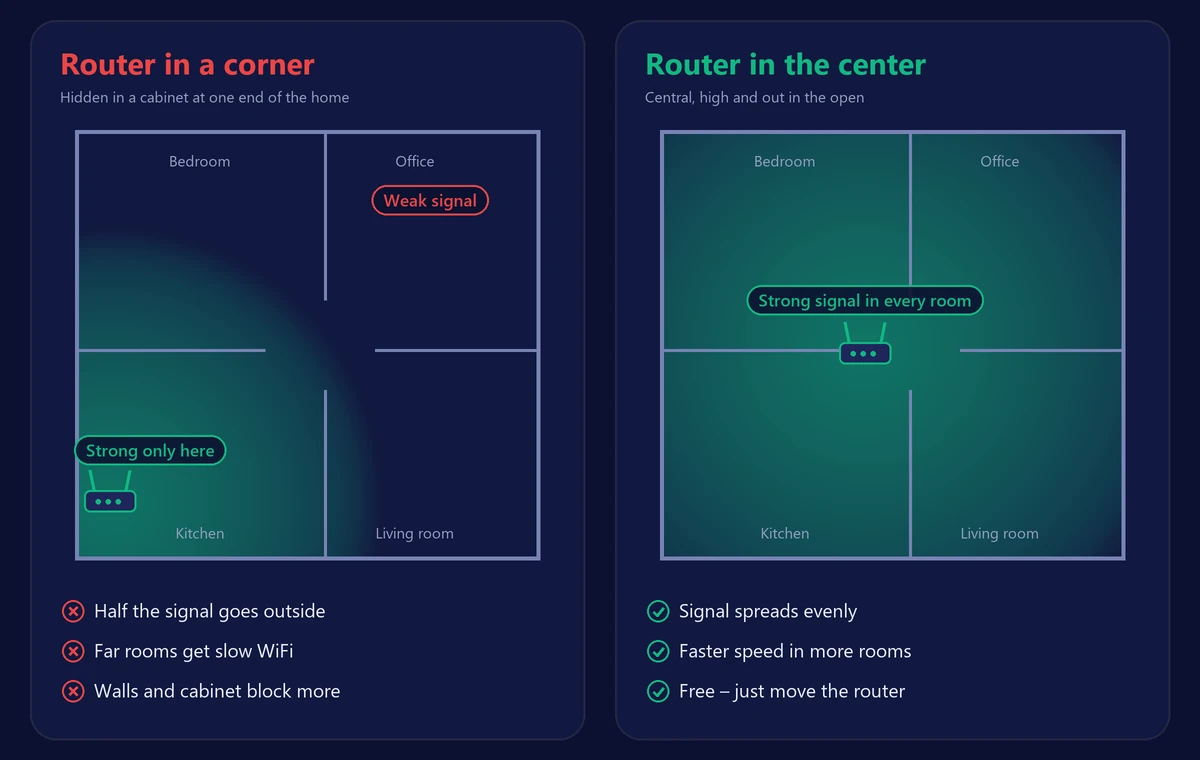
2. Keep it away from obstacles and interference
Metal, mirrors, aquariums, thick concrete and brick walls all absorb or reflect WiFi. Microwave ovens, baby monitors, cordless phones and some Bluetooth devices interfere with the 2.4 GHz band. Give your router a few feet of clear space from these.
3. Adjust the antennas
If your router has external antennas, don’t point them all straight up. Set one vertical and one horizontal (or at a 45° angle). Phones and laptops have antennas in different orientations, and mixing angles improves reception across floors and rooms.
4. Use the right WiFi band
Most routers broadcast on 2.4 GHz and 5 GHz, and newer ones on 6 GHz too.
- 5 GHz and 6 GHz are much faster and less crowded – use them in the same room or nearby rooms.
- 2.4 GHz reaches farther and passes through walls better, but it is slower and crowded – use it for distant rooms and smart-home devices.
If your router uses one network name for all bands (“band steering”), it will usually choose for you. If they have separate names, connect nearby devices to the 5 GHz network.
5. Change the WiFi channel
If many neighbors use the same channel, everyone’s WiFi slows down. Log in to your router (see our 192.168.1.1 router login guide) and let it select the channel automatically, or choose a less crowded one. On 2.4 GHz, use channels 1, 6 or 11 only – they are the only ones that don’t overlap.
6. Update the router’s firmware
Firmware updates fix bugs, improve performance and close security holes. Many routers update automatically; others have an “Update” or “Firmware” button in their settings or app. Check it every few months.
7. Restart your router regularly
Routers are small computers, and after weeks of uptime they can slow down. A restart clears their memory and often lets them pick a cleaner WiFi channel. Unplug the router for 30 seconds once in a while – or schedule an automatic weekly restart if your router supports it.
8. Kick out unwanted users
An open or weakly protected network invites neighbors to use your bandwidth. Use WPA2 or WPA3 encryption with a strong password, change the default admin password, and check the list of connected devices in your router’s app or settings. Disable WPS, which can be abused to guess your password.
9. Turn on QoS
Quality of Service (QoS) lets your router prioritize important traffic. Giving priority to video calls, gaming or a work laptop means they stay smooth even when someone else starts a big download.
10. Add a mesh system or an extender
If your home is large or has several floors, one router may never cover it all. A mesh WiFi system creates one seamless network with multiple access points, while an extender is a cheaper fix for a single dead zone. Not sure which you need? Read our comparison of mesh WiFi vs extenders.
11. Use cables where you can
Every device you connect by Ethernet – a TV, a console, a desktop PC – frees up WiFi capacity for everything else and gets a faster, more stable connection itself. If running cables is impractical, powerline or MoCA adapters can carry the connection through your electrical or coaxial wiring.
12. Upgrade an old router
If your router is more than five years old, it may be the real problem. Older routers have weaker processors, fewer antennas and outdated standards. A modern WiFi 6, WiFi 6E or WiFi 7 router covers more space and handles more devices. Our guide to WiFi 6 vs 6E vs 7 explains which standard fits your home.
Bonus: check the device, not just the router
Sometimes the WiFi is fine and the device is the bottleneck. An old laptop, a phone in a thick metal case or a device with outdated drivers can be much slower than others in the same room. Test with two different devices side by side to find out.
Measure the difference
After each change, run our speed test again in the same spot and compare your download, upload and ping. If WiFi is strong but your internet is still slow, the problem may be your plan or your provider – our guide to why your WiFi is slow and our article on slow internet at night cover the next steps.
Frequently asked questions
Do WiFi booster apps work?
No app can make your router’s signal stronger. Apps can help you find the best channel or the best spot for your router, but the improvement comes from the changes you make, not the app itself.
Does aluminum foil behind the router help?
A reflector can push more signal in one direction, but it also weakens it in the other directions. Moving the router to a better spot is a far more reliable fix.
How far can WiFi reach?
Indoors, a typical router covers roughly 30–50 feet (10–15 m) with good speed, less through several walls or floors. Beyond that, you’ll need a mesh node or an extender.
Why is my WiFi signal strong but internet slow?
Full signal bars only show the connection between your device and the router. If speed is still low, the bottleneck is likely your internet plan, your provider’s network or too many devices using the connection at once.