“Have you tried turning it off and on again?” exists for a reason: restarting a router fixes a surprising number of internet problems. But there’s an important difference between restarting your router and resetting it to factory settings – one is harmless, the other erases everything. This guide explains how to reset your router the right way, and when to choose each option.
Restart vs factory reset
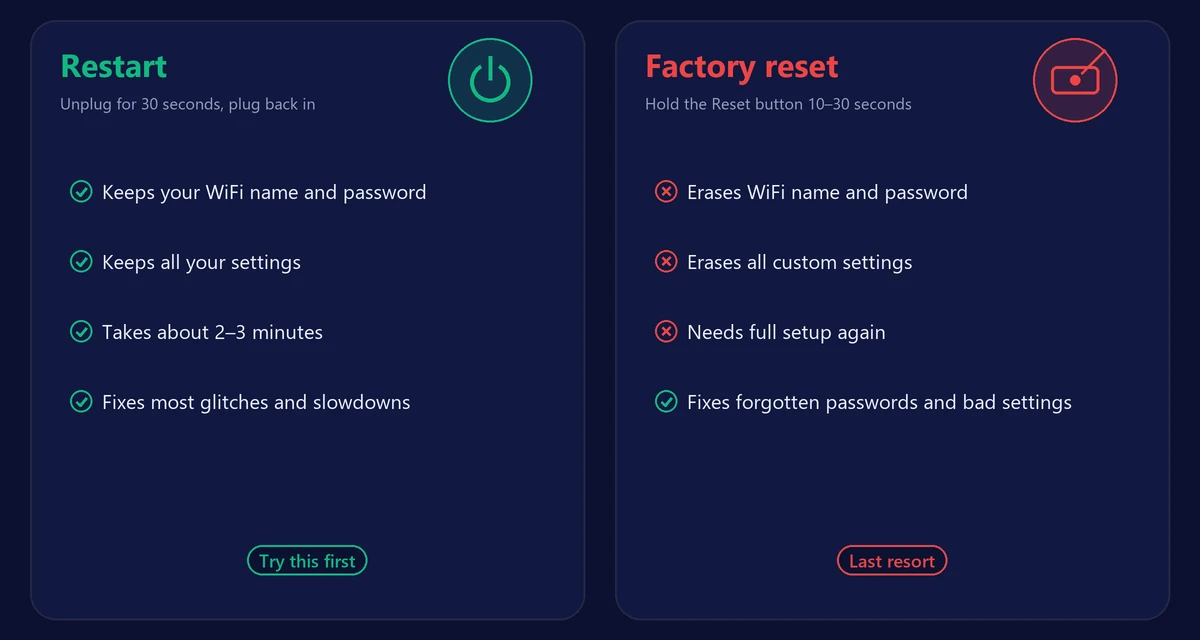
| Restart (reboot) | Factory reset | |
|---|---|---|
| What it does | Turns the router off and on | Restores original factory settings |
| Your WiFi name and password | Kept | Erased – back to the label on the router |
| Custom settings | Kept | Erased (port forwarding, DNS, parental controls…) |
| Time needed | About 2–3 minutes | About 5–10 minutes, plus setup |
| When to use it | Slow internet, dropouts, small glitches | Forgotten password, persistent problems, selling the router |
Always try a restart first. Only use a factory reset when a restart doesn’t help or you can no longer log in.
How to restart your router
- Unplug the router (and the modem, if it’s a separate box) from the power outlet.
- Wait 30 seconds so the devices fully power down.
- Plug the modem back in first and wait until its lights are stable (1–2 minutes).
- Plug the router back in and wait another 1–2 minutes.
- Run our speed test to confirm everything works.
Many routers can also be restarted from their app or from the admin page, under a menu like System, Maintenance or Reboot.
How to factory reset your router
- Write down important details first: your internet login (on some connections, such as DSL or fiber with PPPoE), and any custom settings you want to restore.
- Find the small Reset hole on the back or bottom of the router.
- With the router powered on, press and hold the button with a paper clip for about 10–30 seconds (check your model’s manual), until the lights flash.
- Release the button and wait several minutes while the router restarts.
- Connect using the default WiFi name and password printed on the router’s label.
- Log in to the router (usually at
192.168.1.1or192.168.0.1– see our router login guide) and set a new admin password, WiFi name and WiFi password.
What to do after a factory reset
- Change the default admin password right away.
- Set a strong WiFi password with WPA2 or WPA3 security.
- Re-enter your internet login if your provider requires it.
- Check for firmware updates.
- Reconnect all your devices – smart-home gadgets may need to be set up again.
How often should you restart your router?
There’s no strict rule, but restarting once every week or two keeps many routers running smoothly. Some routers let you schedule an automatic reboot at night. If you need to restart it every day to keep the internet working, something is wrong – see why your WiFi keeps disconnecting.
Router from your internet provider?
Provider gateways can be restarted and reset the same way, and many can also be restarted from the provider’s app. Before a factory reset, check with your provider: some gateways need to be reactivated or receive their settings automatically after a reset, which can take a few minutes.
Frequently asked questions
Will resetting my router make my internet faster?
A restart can fix slowdowns caused by router glitches. A factory reset only helps if bad settings were the problem. Neither changes your plan’s speed.
Is it bad to restart your router often?
No. Restarting doesn’t harm the router. It’s simply unnecessary if everything is working well.
What’s the difference between the router and the modem?
The modem connects your home to your provider’s network; the router creates your WiFi network and connects your devices. Many providers combine both in one box called a gateway.
I reset my router and now I have no internet. Why?
Your connection may need login details that were erased. Check your provider’s welcome letter or contact their support to get the correct settings.