Few things are more frustrating than WiFi that keeps disconnecting – in the middle of a video call, a game or a movie. The good news is that random dropouts almost always come from a handful of causes, and you can find yours by answering one simple question: does it happen on one device or on all of them? This guide walks you through the most common reasons your WiFi keeps disconnecting and 10 fixes that work.
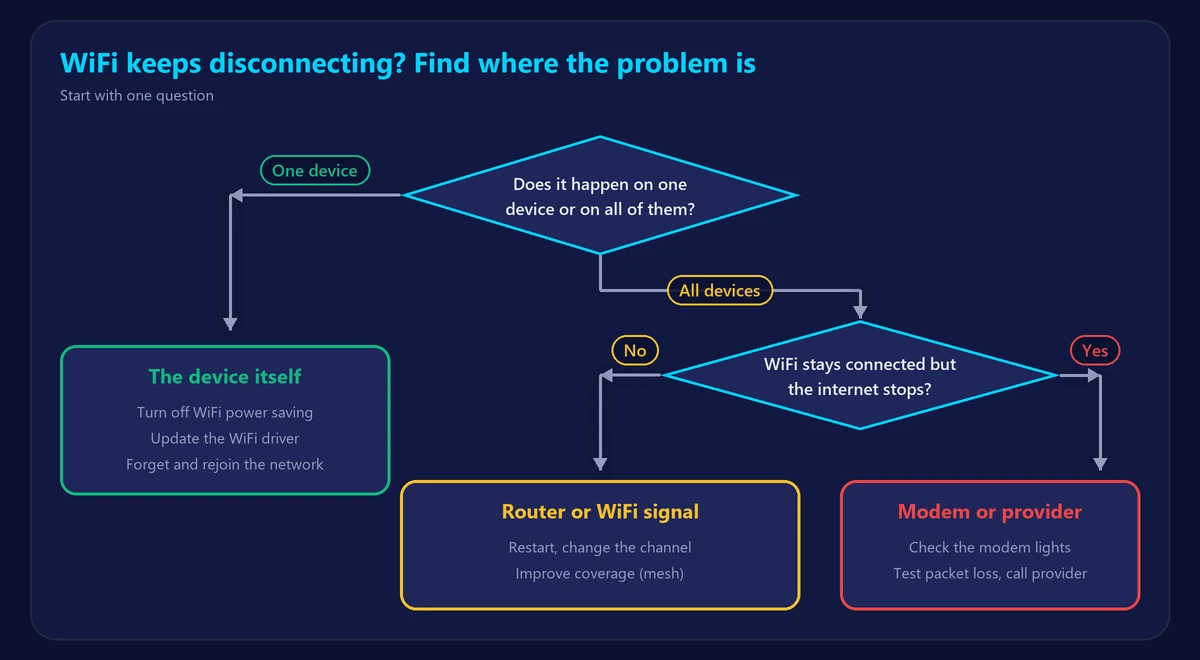
Step 1: One device or all devices?
- Only one device drops – the problem is almost certainly that device: its settings, drivers or power-saving features.
- All devices drop at the same time – the problem is your router, your WiFi signal or your internet connection.
- Devices stay connected to WiFi, but the internet stops – the problem is usually your modem or your provider, not the WiFi itself.
Common causes
| Cause | Typical sign |
|---|---|
| Weak signal / too far from the router | Drops only in certain rooms |
| Interference from neighbors or appliances | Drops at busy times or when the microwave runs |
| Overheating or overloaded router | Everything drops, often after hours of use |
| Power-saving settings on a device | One laptop or phone drops when idle |
| Outdated drivers or firmware | Drops after an update, or on one device only |
| Band steering problems | Device keeps switching between 2.4 and 5 GHz |
| Provider or modem issues | WiFi stays up but the internet goes down |
10 fixes for WiFi that keeps disconnecting
1. Restart the router and modem
Unplug both for 30 seconds, plug the modem back in first, then the router. This clears memory issues and often fixes dropouts immediately.
2. Move closer or improve coverage
If drops happen only in certain rooms, the signal is too weak there. Move the router to a central spot, or add a mesh system – see our guide to mesh WiFi vs extenders and our tips to boost your WiFi signal.
3. Change the WiFi channel
Crowded channels cause retransmissions and disconnects. Let the router choose its channel automatically, or pick a less busy one in its settings (see our router login guide).
4. Use the right band
Devices far away may lose the 5 GHz signal and drop. Connect distant devices to 2.4 GHz and nearby ones to 5 GHz. Our guide to 5GHz vs 2.4GHz WiFi explains the difference.
5. Turn off WiFi power saving on laptops
On Windows, open Device Manager → Network adapters → your WiFi adapter → Power Management, and untick “Allow the computer to turn off this device to save power”. Also set the power plan to balanced or high performance.
6. Update drivers and router firmware
Install the latest WiFi driver from your laptop manufacturer and check your router for firmware updates. Bugs in old firmware are a frequent cause of random dropouts.
7. Forget the network and reconnect
On the device that drops, “forget” the WiFi network and join it again with the password. This clears corrupted connection settings.
8. Keep the router cool and uncluttered
Routers in closed cabinets or next to other electronics can overheat and reboot. Give it open space and airflow.
9. Reduce the load
Older routers struggle with dozens of connected devices. Disconnect devices you don’t use, and check that nobody else is on your network with our guide to who is using my WiFi.
10. Check your internet line
If your devices stay on WiFi but lose the internet, look at the modem’s lights when it happens and run our ping test to check for packet loss. Repeated drops with packet loss on a wired connection point to your provider – contact them with your results.
When to replace your router
If dropouts continue after all of the above and your router is more than five years old, it may simply be failing. A modern WiFi 6 or newer router is far more stable with many devices – compare options in our guide to WiFi 6, 6E and 7.
Frequently asked questions
Why does my WiFi disconnect every few minutes?
Regular, frequent drops usually point to interference, a weak signal or a device’s power-saving settings. Test close to the router to rule out the signal first.
Why does my WiFi disconnect at night?
Some routers run scheduled reboots or updates at night, and neighbors’ networks are busier in the evening. Check the router’s schedule settings.
Can a VPN cause WiFi to disconnect?
A VPN can make the internet appear to drop if its connection is interrupted, but it doesn’t disconnect your WiFi. Test with the VPN turned off to see if it makes a difference.