Your WiFi suddenly feels slow, or you just want to know which devices are connected to your network. If you’re asking yourself “who is using my WiFi?”, finding out takes only a few minutes, and if you find a device that shouldn’t be there, removing it and locking your network is just as easy. Here’s how to see every connected device and keep unwanted users out.
Signs someone else may be using your WiFi
- Your internet is slower than usual, even when nobody at home is using it.
- The router’s lights keep blinking heavily when all your devices are off.
- You see unfamiliar device names in your router or app.
- Your data usage is higher than expected (on plans with data caps).
Slow internet has many possible causes, so check the connected devices before jumping to conclusions. Run our speed test to get a baseline first.
Method 1: Check your router’s device list
- Log in to your router, usually at
192.168.1.1or192.168.0.1. Our router login guide explains how. - Look for a section called Connected Devices, Attached Devices, Device List, DHCP Clients or Wireless Clients.
- You’ll see a list of device names, IP addresses and MAC addresses (a unique hardware ID for each device).
Method 2: Use your router or provider’s app
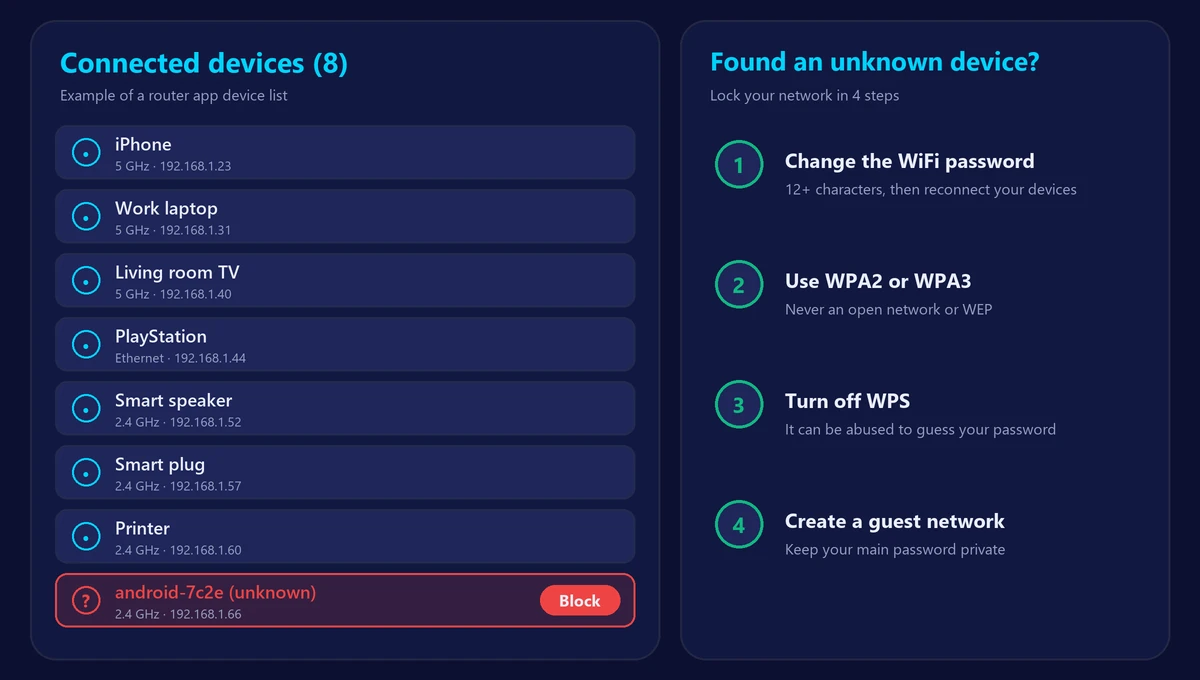
Most modern routers, mesh systems and provider gateways come with a mobile app that shows connected devices in a friendly list, often with device type icons and live usage. Many apps also let you pause or block a device with one tap.
How to identify each device
Device names aren’t always obvious – you may see something like “android-3f9a” or “ESP_12AB34”. To match devices:
- Count your own devices: phones, laptops, TVs, consoles, speakers, smart plugs, cameras, printers. Most homes have more connected devices than they think.
- Compare MAC addresses: on a phone or computer, the WiFi details screen shows its MAC address (sometimes called “WiFi address”). Note that many phones use a private, randomized MAC per network.
- Switch devices off one at a time and watch which entry disappears from the list.
- Look at the manufacturer: many routers show the brand (Apple, Samsung, Amazon…), which helps narrow it down.
Found a device you don’t recognize?
- Change your WiFi password to a new, strong one (12+ characters). This disconnects everyone; you’ll reconnect your own devices with the new password.
- Use WPA2 or WPA3 security. Never leave the network open or on old WEP encryption.
- Turn off WPS, which can be abused to guess your WiFi password.
- Change the router’s admin password, not just the WiFi password.
- Block the device in your router or app if you want to keep it out immediately.
- Create a guest network for visitors, so your main password stays private.
Keep your network secure
- Update your router’s firmware regularly.
- Don’t share your main WiFi password widely – use the guest network instead.
- Check the device list every few months, especially if speeds drop.
Still slow after removing unwanted devices? The cause may be elsewhere – see why your WiFi is slow and how to boost your WiFi signal.
Frequently asked questions
Can I see who is using my WiFi from my phone?
Yes. Use your router’s app, or open the router’s admin page in your phone’s browser while connected to your WiFi.
Will changing my WiFi password kick everyone off?
Yes. Every device is disconnected and must reconnect with the new password – the simplest way to remove unknown users.
Can someone use my WiFi if it has a password?
Only if they know or guess the password, or if an older weakness such as WPS is enabled. A strong password with WPA2 or WPA3 keeps almost everyone out.
Why do I see devices I don’t recognize but own?
Smart TVs, speakers, plugs, printers and even appliances connect to WiFi with technical names. Turning them off one by one is the easiest way to identify them.