Want to use your phone as a hotspot? Both iPhone and Android can share their mobile data with a laptop, tablet or another phone in under a minute. You can connect over WiFi, USB or Bluetooth. This guide shows how to turn the hotspot on, how to connect a laptop, and how to keep it fast and avoid surprise data charges.
How to turn on a hotspot on iPhone
- Open Settings and tap Personal Hotspot. On some iPhones it’s under Settings → Cellular → Personal Hotspot.
- Turn on Allow Others to Join.
- Note the Wi-Fi Password shown on this screen. You can tap it to change it.
If Personal Hotspot is missing, your mobile plan may not include it. Contact your carrier.
How to turn on a hotspot on Android
- Open Settings → Network & internet → Hotspot & tethering. On Samsung phones: Settings → Connections → Mobile Hotspot and Tethering.
- Tap Wi-Fi hotspot (Mobile Hotspot on Samsung) and turn it on.
- Check the network name and password, and change the password if you like.
You can also swipe down from the top of the screen and tap the Hotspot tile in Quick Settings.
How to connect a laptop to your phone’s hotspot
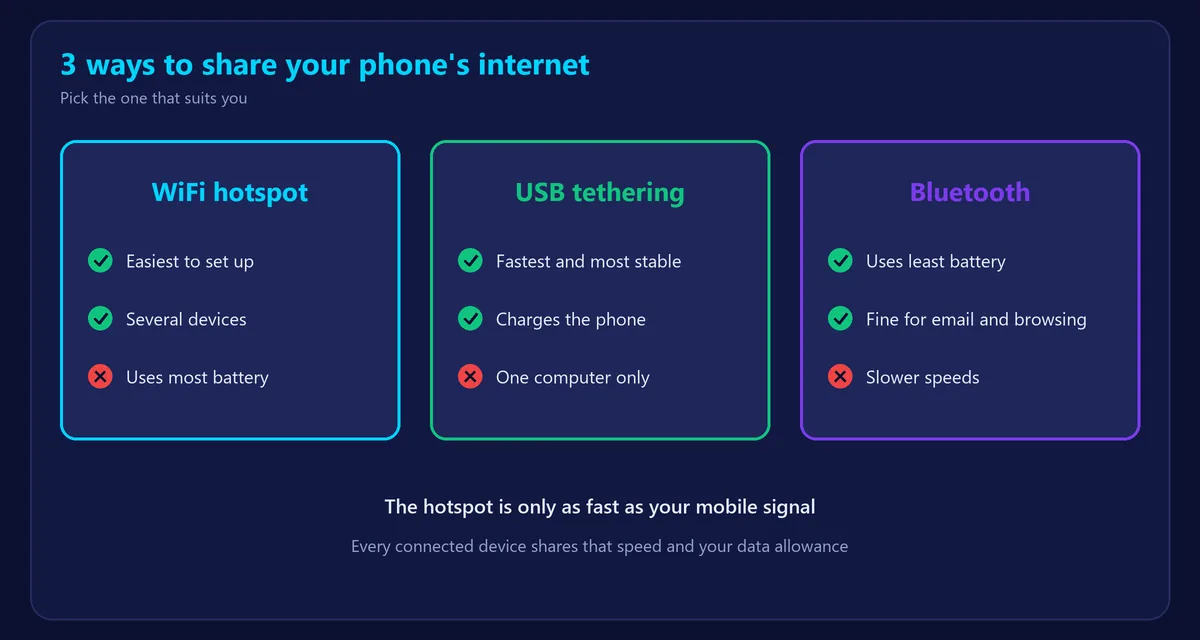
- Over WiFi (easiest): on the laptop, open the WiFi list, choose your phone’s network name and type the hotspot password. Macs and iPhones signed in to the same Apple account can join without the password.
- Over USB (fastest and most stable): connect the phone with a cable. On iPhone, tap Trust on the phone. On Android, turn on USB tethering in the Hotspot & tethering menu. It also charges the phone.
- Over Bluetooth (uses the least battery): pair the phone and laptop, then turn on Bluetooth tethering on Android, or join the iPhone from the laptop’s Bluetooth network options. It’s slower, so use it for email and browsing.
How fast is a phone hotspot?
A hotspot can only be as fast as your mobile signal. On good 4G that’s often 20–60 Mbps, and on mid-band 5G it can be several hundred Mbps (see 4G vs 5G speed). Every connected device shares that speed. To see what you’re getting, connect the laptop and run our speed test.
If it’s much slower than expected, read why is my hotspot so slow. The usual causes are a weak signal, a carrier speed limit on hotspot data, or the phone being too far away or too hot.
Tips to save data and battery
- Check your plan: many plans have a separate hotspot data allowance, and speeds drop sharply after it’s used up.
- Pause big updates: laptops download system and app updates in the background. On Windows, set the hotspot network as a metered connection; on Mac, turn on Low Data Mode for that network.
- Lower video quality on streaming sites to save data.
- Keep the phone plugged in and near a window if the signal is weak.
- Turn the hotspot off when you’re done, and use a strong password so nobody else joins.
Frequently asked questions
Does using a hotspot cost extra?
It uses your mobile data. Some plans include hotspot data, some limit it and some charge extra. Check with your carrier.
Why can’t my laptop see my hotspot?
On iPhone, keep the Personal Hotspot screen open while the laptop searches. On Android, try switching the hotspot band to 2.4 GHz in its settings, since some older laptops can’t see 5 GHz networks.
How many devices can connect to a phone hotspot?
Usually up to about 5–10, depending on the phone. More devices means each one gets less speed.