Setting up a smart plug, camera or printer that “only works on 2.4 GHz”? Or wondering why your WiFi speed varies from room to room? Then you need to know: is my WiFi 2.4 or 5 GHz? This guide shows how to check whether your connection uses WiFi 2.4 or 5 GHz on Windows, Mac, Android and iPhone, how to read the channel number, and how to connect a device to the 2.4 GHz band when it refuses to pair.
The quick rule: check the channel number
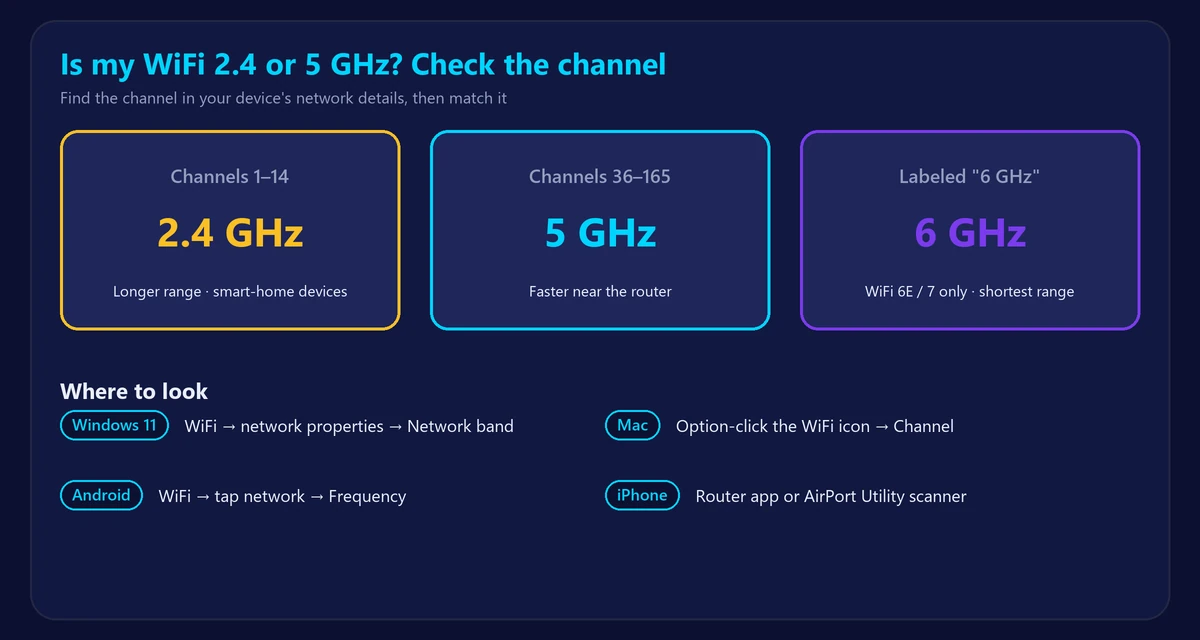
| Channel | Band |
|---|---|
| 1–14 | 2.4 GHz |
| 36–165 | 5 GHz |
| Labeled “6 GHz” (channels 1–233) | 6 GHz (WiFi 6E / 7) |
6 GHz reuses low channel numbers, so devices always show “6 GHz” next to them.
How to check on Windows
Windows 11: Settings → Network & internet → WiFi → [your network] properties. Look for Network band (2.4 GHz, 5 GHz or 6 GHz) and Network channel.
Any Windows version: open Command Prompt and run:
netsh wlan show interfacesCheck the Band line (newer versions) or the Channel line and use the table above.
How to check on Mac
Hold the Option key and click the WiFi icon in the menu bar. Under your network you’ll see Channel, for example “149 (5 GHz, 80 MHz)” or “6 (2.4 GHz, 20 MHz)”.
How to check on Android
Go to Settings → Network & internet (or Connections) → WiFi → tap your network. Many phones show Frequency as 2.4 GHz or 5 GHz in the details or under “Advanced”. Menu names vary by brand.
How to check on iPhone
iOS doesn’t show the band directly. Options:
- Look at the network name – many routers add “-5G” or “-2.4” to separate networks.
- Check your router’s app or device list, which usually shows each device’s band.
- Use Apple’s free AirPort Utility app with its Wi-Fi Scanner enabled to see channels.
How to check in your router settings
Log in to your router (see our router login guide) and open the wireless settings. You’ll see whether 2.4 GHz and 5 GHz are enabled, their network names and channels, and often which band each connected device uses.
How to connect a device to 2.4 GHz
Many smart-home devices only support 2.4 GHz. If your router uses one name for both bands (“band steering”), setup can fail. Try these in order:
- Move farther from the router during setup. Phones switch to 2.4 GHz when 5 GHz gets weak.
- Split the bands: in the router settings, give 2.4 GHz and 5 GHz different names (for example “Home” and “Home-5G”), or turn on a dedicated 2.4 GHz/IoT network if your router offers one. Connect your phone to the 2.4 GHz name during setup.
- Temporarily turn off 5 GHz, set up the device, then turn 5 GHz back on.
- Check security: some older devices need WPA2 rather than WPA3-only.
Which band should you use?
- 5 GHz: faster, less interference – best near the router for laptops, TVs and consoles.
- 2.4 GHz: longer range and better through walls – best for distant rooms and smart-home devices.
- 6 GHz: fastest and least crowded, but shortest range; needs WiFi 6E/7 devices.
The full comparison is in 5GHz vs 2.4GHz WiFi. To see the difference yourself, run our speed test on each band from the same spot, and check your WiFi signal strength.
Frequently asked questions
How do I know if my WiFi is 2.4 GHz?
Check the channel: 1–14 means 2.4 GHz. On Windows 11 and Mac you can also see the band directly in the network details.
Can I use 2.4 and 5 GHz at the same time?
Yes. Dual-band routers broadcast both. Each device connects to one band at a time.
Why does my phone only see 2.4 GHz?
The phone may be too far from the router for 5 GHz, 5 GHz may be turned off in the router, or the device may not support 5 GHz.
Is 5 GHz always faster than 2.4 GHz?
Near the router, yes. Far away or behind several walls, 2.4 GHz can actually be faster because its signal is stronger there.