Your speed test looks great, your ping seems fine, yet video calls stutter and online games feel inconsistent. The hidden culprit is often jitter. So what is jitter, how much is too much, and how do you fix it? This guide explains it in plain English.
What is jitter?
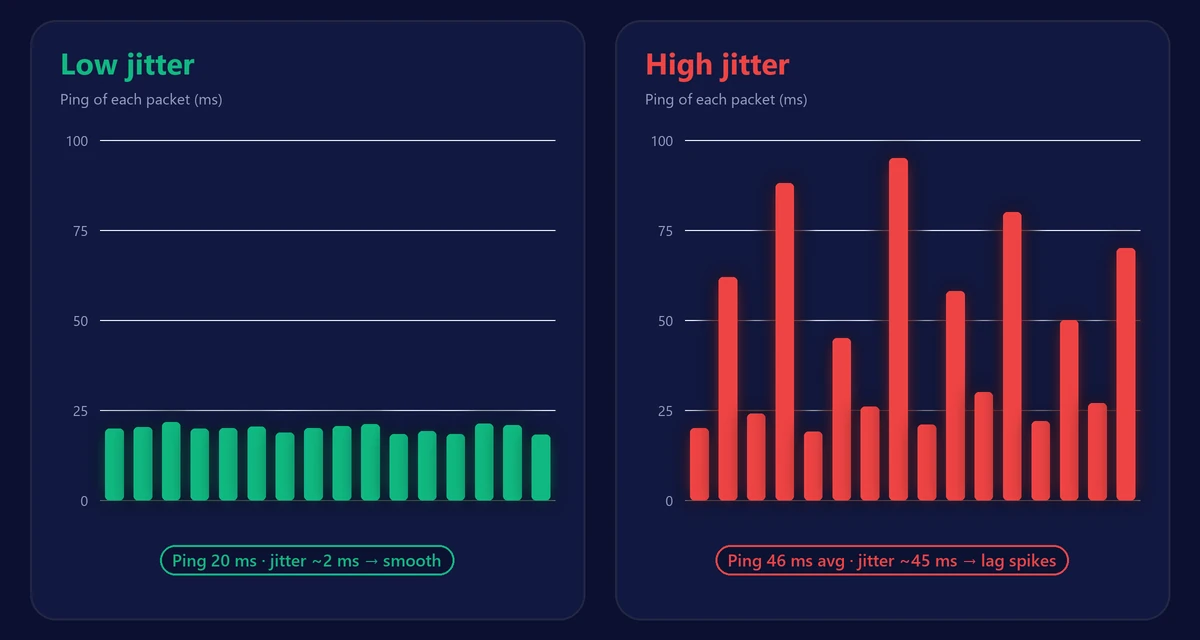
Jitter is the variation in your ping over time. If every packet takes about 20 ms to reach a server and come back, your connection is stable and jitter is low. If one packet takes 20 ms, the next 70 ms and the next 25 ms, jitter is high – and real-time apps struggle to keep up.
Think of it like a bus line. Ping is how long the trip takes; jitter is how unpredictable the arrival times are. A bus that’s always 20 minutes late is annoying but plannable. A bus that’s sometimes on time and sometimes an hour late makes it impossible to plan.
How jitter is measured
Jitter is usually calculated as the average change in ping between consecutive measurements. For example, pings of 20, 24, 19 and 23 ms change by 4, 5 and 4 ms – an average jitter of about 4.3 ms. Our ping test measures it this way over 30 samples and also shows packet loss.
What is a good jitter?
| Jitter | Rating | Effect |
|---|---|---|
| Under 5 ms | Excellent | Smooth calls and competitive gaming |
| 5–15 ms | Good | Fine for almost everything |
| 15–30 ms | Fair | Occasional stutter in calls and games |
| Over 30 ms | Poor | Choppy audio, frozen video, lag spikes |
What jitter does to your apps
- Video calls: robotic voices, words cut off, frozen video. Apps add a buffer to smooth jitter, which also adds delay.
- Online games: rubber-banding, hits that don’t register and sudden lag spikes, even when the average ping looks fine.
- Streaming: usually unaffected, because video players download ahead and buffer several seconds.
- Browsing and downloads: barely affected.
What causes jitter?
- WiFi interference – busy channels and neighbors’ networks cause retransmissions and irregular delays. This is the most common cause at home.
- A congested connection – uploads and downloads on other devices fill the line and make ping fluctuate.
- Provider congestion – especially in the evening on shared networks.
- Old or overloaded routers struggling to process traffic evenly.
- Wireless connections such as 4G/5G home internet and satellite, which naturally vary more.
How to reduce jitter
- Use an Ethernet cable for gaming PCs, consoles and work computers – the biggest single improvement. See Ethernet vs WiFi.
- Stop background uploads such as cloud backups during calls and games.
- Enable QoS or SQM in your router to prioritize real-time traffic.
- Switch to 5 GHz WiFi near the router and choose a less crowded channel.
- Restart your router and keep its firmware up to date.
- Test at different times: if jitter is only high in the evening, your provider’s network is likely congested.
For more gaming-specific tips, read our guide on how to lower ping for gaming.
Jitter vs ping vs packet loss
| Metric | What it measures | Ideal value |
|---|---|---|
| Ping (latency) | How long data takes to travel to a server and back | Under 50 ms |
| Jitter | How much ping varies from one moment to the next | Under 10 ms |
| Packet loss | The share of data that never arrives | 0% |
Frequently asked questions
Is jitter worse than high ping?
For real-time apps, often yes. A steady 60 ms ping is usually easier to play on than a ping that jumps between 20 and 120 ms.
Does a faster internet plan reduce jitter?
Only if your connection was full. If jitter comes from WiFi interference or provider congestion, more Mbps won’t fix it.
How do I test my jitter?
Run our free ping test. It measures ping, jitter and packet loss to the nearest server in a few seconds.