Nothing ruins an online match like lag: shots that don’t register, characters teleporting and that frustrating delay between pressing a button and seeing the result. The cause is almost always high or unstable ping. The good news is that you can lower ping for gaming with a few practical changes – most of them free. Here are 12 fixes that actually work, starting with the ones that make the biggest difference.
First, measure your ping
Before changing anything, run our ping test on the device you play on. Write down three numbers: ping (latency), jitter (how much ping varies) and packet loss. For competitive games, aim for ping under 40 ms, jitter under 10 ms and 0% packet loss. Measure again after each change so you know what actually helped.
Where does your ping come from?
Ping is the total time for data to travel from your console or PC to the game server and back. Every step on the way adds a few milliseconds: your WiFi, your router, your provider’s network and the distance to the server. You can’t change the speed of light, but you can remove the delays you control – mostly inside your home.
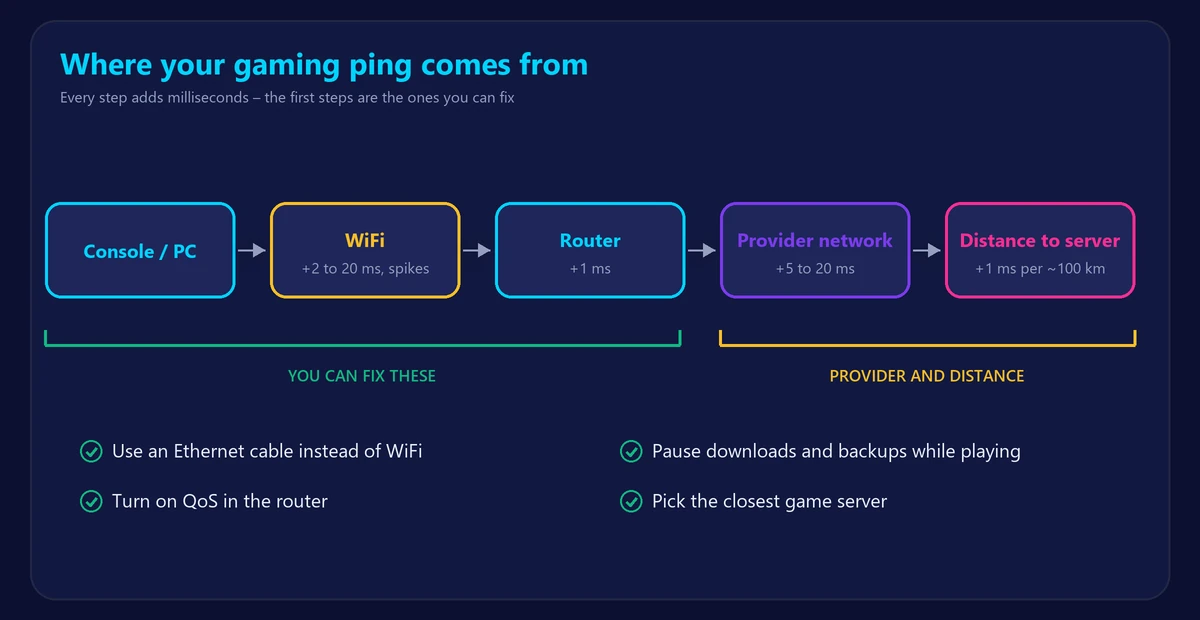
1. Use an Ethernet cable
This is the single most effective fix. WiFi adds a few milliseconds of delay and, more importantly, random spikes when the airwaves are busy. A cable removes both. If your console or PC is far from the router, a long flat Ethernet cable or a MoCA adapter is still better than WiFi. Read our full comparison of Ethernet vs WiFi.
2. If you must use WiFi, use 5 GHz and get closer
The 5 GHz band (or 6 GHz on newer routers) is far less crowded than 2.4 GHz. Move closer to the router and remove obstacles between you. See our tips to boost your WiFi signal.
3. Stop other devices from hogging the connection
A 4K stream, a game update or a cloud backup on another device can fill your connection and push your ping up by tens or hundreds of milliseconds. Pause big downloads and backups while you play – especially uploads, which are often the bottleneck on cable and DSL.
4. Turn on QoS in your router
Quality of Service (QoS) lets the router send gaming traffic first. Many routers have a “gaming” priority or let you prioritize a specific device. Some also offer Smart Queue Management (SQM), which is very effective at preventing lag spikes when the connection is busy.
5. Pick the closest game server
Distance matters. If your game lets you choose a region or server, pick the one nearest to you. Playing on a server on another continent can easily add 100 ms or more, no matter how good your connection is.
6. Close background apps
Launchers, cloud sync tools, browsers with video tabs and automatic updates can all use the network while you play. Close what you don’t need and pause automatic updates during gaming sessions.
7. Restart your router and modem
Routers slow down after long periods of uptime. A restart clears their memory and can fix sudden lag. Unplug both devices for 30 seconds, then plug in the modem first and the router a minute later.
8. Update your router firmware and network drivers
Firmware updates often fix performance problems. On a gaming PC, update the network card driver from the manufacturer’s website as well. Our router login guide shows how to reach your router settings.
9. Check for packet loss on your line
If our ping test shows packet loss even on a cable with nothing else running, the problem is likely your line or your provider. Check cables and connectors, then contact your provider with your test results.
10. Avoid peak-hour congestion
If your ping is fine in the morning but terrible every evening, your provider’s network is probably congested at peak times. Learn how to confirm it in our guide on why internet is slow at night.
11. Be careful with VPNs
A VPN adds an extra stop on the way to the game server, so it usually increases ping. Only use one for gaming if your provider has bad routing to a specific server and the VPN measurably improves it.
12. Consider a better connection type
Fiber typically offers the lowest and most stable ping, followed by cable. DSL, 4G/5G home internet and especially satellite tend to have higher or more variable latency. If gaming matters a lot to you, it’s a good reason to choose fiber when it’s available.
What is a good ping for gaming?
| Ping | Gaming experience |
|---|---|
| Under 20 ms | Excellent – ideal for competitive shooters |
| 20–50 ms | Very good for almost all online games |
| 50–100 ms | Playable, but you may notice delay in fast games |
| Over 100 ms | Noticeable lag |
Frequently asked questions
Does faster internet lower ping?
Not directly. A higher Mbps plan only helps if your connection was full. Ping depends mostly on your connection type, your home network and the distance to the server.
Why is my ping high but my speed is fine?
Speed and ping measure different things. Typical causes are WiFi interference, a busy upload, a distant server or congestion on your provider’s network.
Can a gaming router lower ping?
It can reduce lag spikes thanks to better QoS and processing, but it can’t shorten the distance to the server. Try the free fixes above first.