Want to change your WiFi password? It takes about five minutes on any router. You log in to the router’s settings page, open the wireless section, type a new password and save. This guide walks you through each step, shows where the setting is on popular router brands, and explains what to do if you can’t log in.
How to change your WiFi password in 5 steps
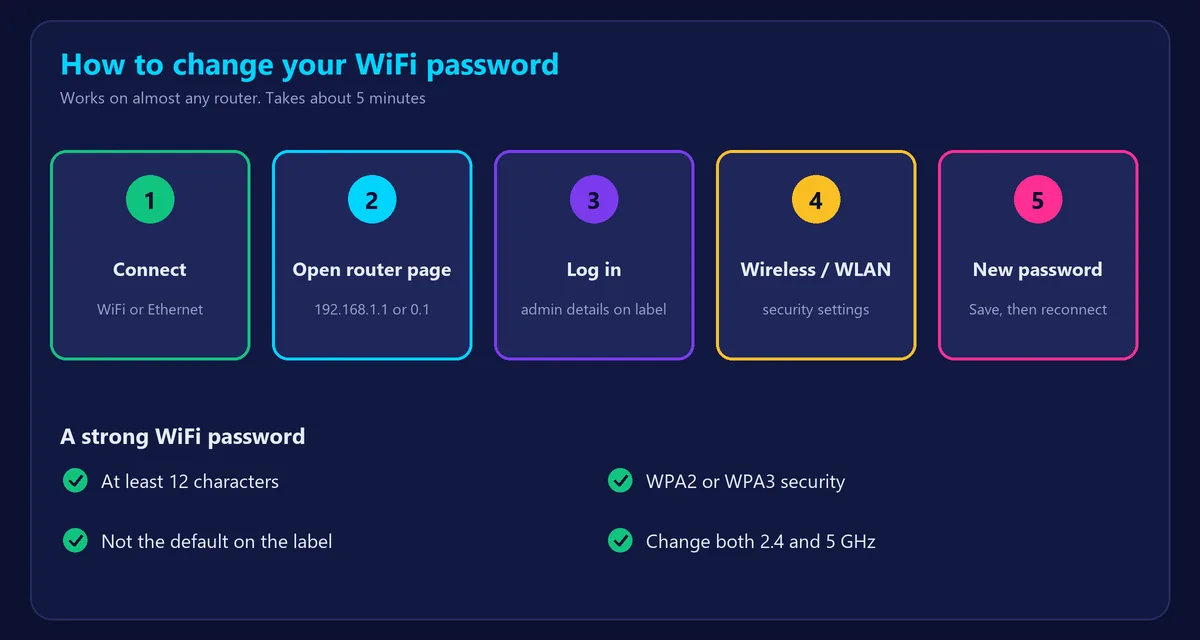
- Connect to your network. Use WiFi or, better, an Ethernet cable, so you don’t lose the connection when the password changes.
- Open the router’s settings page. Type its address in your browser’s address bar. It’s usually 192.168.1.1 or 192.168.0.1, and it’s printed on the router’s label.
- Log in. Enter the admin username and password from the label, or the ones you set up earlier. This is not your WiFi password.
- Find the wireless settings. Look for a menu called Wireless, WiFi, WLAN or Wireless Security.
- Type a new password and save. The field is often called Password, Passphrase, WPA key or Pre-shared key. Click Save or Apply.
Your devices will disconnect. Reconnect each one using the new password.
Where is the setting on popular routers?
| Router | Address | Menu (may vary by model) |
|---|---|---|
| TP-Link | 192.168.0.1 or tplinkwifi.net | Wireless → Wireless Settings (or Advanced → Wireless) |
| Netgear | 192.168.1.1 or routerlogin.net | Wireless (or Settings → Wireless) |
| Asus | 192.168.1.1 or router.asus.com | Wireless → General |
| Linksys | 192.168.1.1 | WiFi Settings |
| D-Link | 192.168.0.1 | Settings → Wi-Fi |
Many routers also have an app, such as Deco, Nighthawk, Asus Router or eero, where you can change the WiFi password from your phone without typing an address. Provider gateways from Xfinity, Spectrum, AT&T or Verizon usually let you do it in the provider’s app or account page.
Choose a strong WiFi password
- Use at least 12 characters. A short phrase of random words is easy to type and hard to guess.
- Avoid names, birthdays, addresses and the default password on the label.
- Use WPA2 or WPA3 security. Never use WEP or an open network.
- If your router broadcasts two networks (2.4 GHz and 5 GHz), change the password on both.
While you’re in the settings, also change the admin password of the router itself, and turn off WPS if you don’t use it.
Can’t log in to the router?
- Wrong address? Find the real one: on Windows, run
ipconfigand look for Default Gateway. On a phone, open the WiFi network details and look for Router or Gateway. - Page won’t open? Turn off mobile data and any VPN, and type the address in the address bar, not in a search box.
- Forgot the admin password? The only fix is a factory reset. It restores the details on the label and erases your settings. See how to restart or reset your router.
After you change the password
Reconnect your phones, laptops, TVs, consoles and smart-home devices. Some smart devices have to be set up again from their app. If a device says the password is wrong even though you typed it correctly, see incorrect WiFi password fixes.
Changing the password also disconnects anyone who was using your WiFi without permission. To see who is connected, read who is using my WiFi?. Then run our speed test to check that everything works.
Frequently asked questions
Can I change my WiFi password from my phone?
Yes. Connect your phone to the WiFi, open the router address in a browser, or use the router’s or provider’s app.
Will changing my WiFi password disconnect everyone?
Yes. Every device has to reconnect with the new password, including any unwanted users.
How often should I change my WiFi password?
There’s no fixed rule. Change it if you shared it with people who no longer need it, if you suspect someone is using your network, or if you still use the default password.