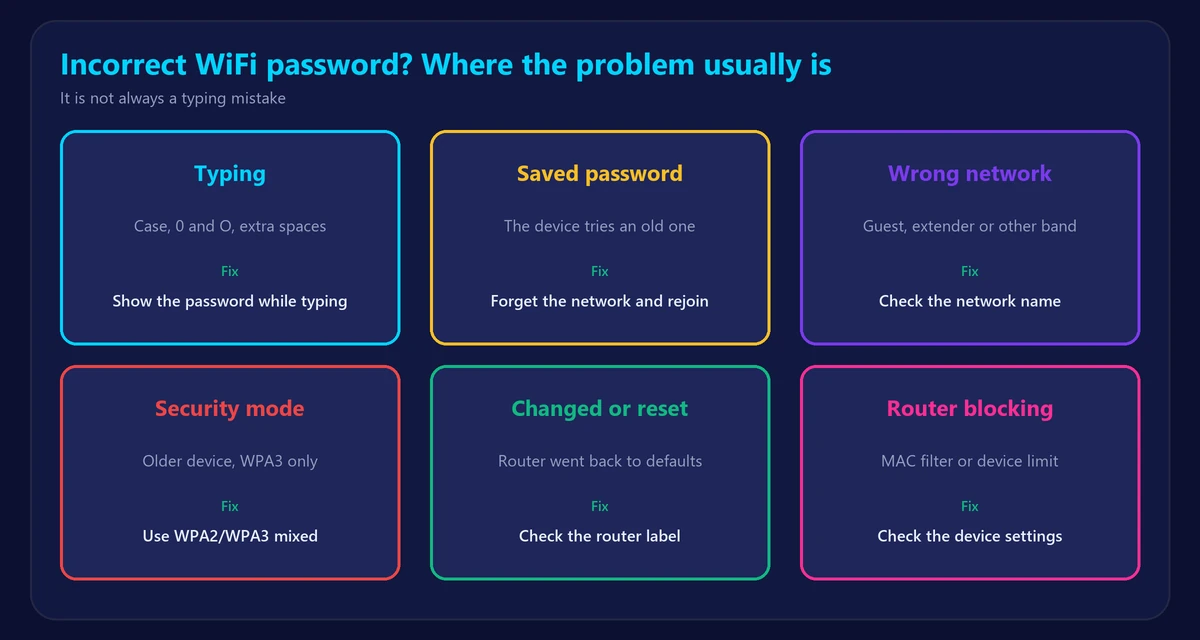
You’re sure the password is right, but your device still says it’s wrong. An incorrect WiFi password message doesn’t always mean a typing mistake. It can also come from an old saved password, the wrong network or a security setting your device doesn’t support. These fixes are for your own network, or one you have permission to use, and they start with the most likely causes.
Quick checks
- Show the password as you type. Passwords are case-sensitive, and it’s easy to confuse 0 with O, or 1 with l.
- Watch for auto-capitalization and extra spaces, especially on phones or when you paste the password.
- Check that it’s the right network. Guest networks, extender networks and separate 2.4 and 5 GHz networks can have different passwords.
- Ask whether the password has changed. Someone may have updated it, or a router reset may have restored the original.
9 fixes when the WiFi password is right
1. Forget the network and reconnect
A device can keep trying an old saved password. Forget the network in WiFi settings, then join it again and type the password carefully.
2. Restart the device and router
Temporary faults can look like a wrong password. Restart your device, then restart the router.
3. Try another device
If another phone or laptop accepts the password, the problem is on the first device. If none do, the password or router is the likely problem.
4. Check the password on the router
If it was never changed, the default password is usually printed on the router’s label. If it was changed, log in to the router and look under its wireless settings. See our router login guide.
5. Find the password on a device that’s already connected
- Windows: open Command Prompt and run the command below, using your network’s name.
- iPhone (iOS 16 or later): Settings → Wi-Fi → tap the (i) → Password.
- Android: open the network’s details and choose Share. It displays a QR code, often with the password.
- Mac: System Settings → Wi-Fi → Advanced → the ••• next to the network → Copy Password.
netsh wlan show profile name="YourNetworkName" key=clearOn Windows, look for Key Content in the results.
6. Change the security mode
Older devices may not support WPA3 and can report a password error instead. In your router settings, switch from WPA3 only to WPA2/WPA3 mixed or WPA2 (AES).
7. Simplify special characters
Some older devices and smart-home products struggle with unusual symbols in passwords. Try a long password that uses only letters and numbers. Length is what makes it strong.
8. Check MAC filtering and device limits
A router may reject a device that isn’t allowed, and some devices report this as a password problem. Check the router’s device or access-control settings.
9. Reset network settings or the router
Reset the device’s network settings if only one device fails. As a last resort, factory reset the router and set everything up again. That erases your settings, so read how to reset your router first.
iPhone says incorrect password?
Forget the network, restart the iPhone and try again. If that fails, turn off any VPN and check Private Wi-Fi Address in the network’s settings. More help is in why your phone won’t connect to WiFi.
Laptop says incorrect password?
Update the WiFi driver and forget the network. Older laptops are especially likely to have trouble with WPA3. See laptop won’t connect to WiFi.
Make your password easier to get right
- Use a long passphrase of unrelated words. It’s strong and easy to type.
- Avoid characters that look alike.
- Use the QR code sharing feature on your phone or router app for guests.
- Check who is using your WiFi after changing it.
Frequently asked questions
Why does my WiFi say incorrect password when it’s correct?
Often because of an old saved password, an incompatible security mode, or a temporary fault. Forget the network and restart both the device and the router.
Where do I find my WiFi password?
On the router’s label if it was never changed, in the router’s settings, or on a device that’s already connected.
Does resetting the router change the WiFi password?
Yes. A factory reset restores the default password on the label. A normal restart doesn’t change it.
Are WiFi passwords case-sensitive?
Yes. Uppercase and lowercase letters count as different characters.