The ping command is the quickest way to check a network connection from your own computer. It sends small test messages to another device, such as google.com or your router, and measures how long each one takes to come back. This guide shows how to run ping google.com -t and other useful versions on Windows, Mac and Linux, and how to read the results.
How to run the ping command
- Windows: press the Windows key, type
cmdand open Command Prompt. Typeping google.comand press Enter. - Mac: open Terminal (Applications → Utilities) and type
ping google.com. - Linux: open a terminal and type
ping google.com.
On Windows, ping sends 4 messages and stops. On Mac and Linux, it keeps going until you press Ctrl + C.
What does ping google.com -t do?
On Windows, ping google.com -t pings continuously until you press Ctrl + C. It’s useful for watching a connection over time: leave it running while you walk around the house with a laptop, or while a game lags, and look for slow replies or timeouts. When you stop it, Windows shows a summary.
Useful ping commands
| Command | What it does |
|---|---|
ping google.com -t |
Windows: ping without stopping until Ctrl + C |
ping google.com -n 50 |
Windows: send 50 pings, then show a summary |
ping -c 50 google.com |
Mac and Linux: send 50 pings, then stop |
ping 192.168.1.1 |
Ping your router (use your own router address) |
ping 8.8.8.8 |
Ping an IP address directly, skipping DNS |
How to read ping results
Each line shows a reply, for example Reply from 142.250.x.x: bytes=32 time=18ms TTL=117.
- time is the round-trip time in milliseconds. Lower is better.
- Request timed out means a message was lost. A few in a long test are normal; many point to a problem.
- The summary shows how many packets were lost and the minimum, maximum and average time.
| Average time | What it means |
|---|---|
| Under 20 ms | Excellent |
| 20–50 ms | Good for gaming and calls |
| 50–100 ms | OK for most things, noticeable in fast games |
| Over 100 ms | Laggy |
If the times jump around a lot (say 15 ms, then 120 ms, then 20 ms), you have high jitter. See what is jitter.
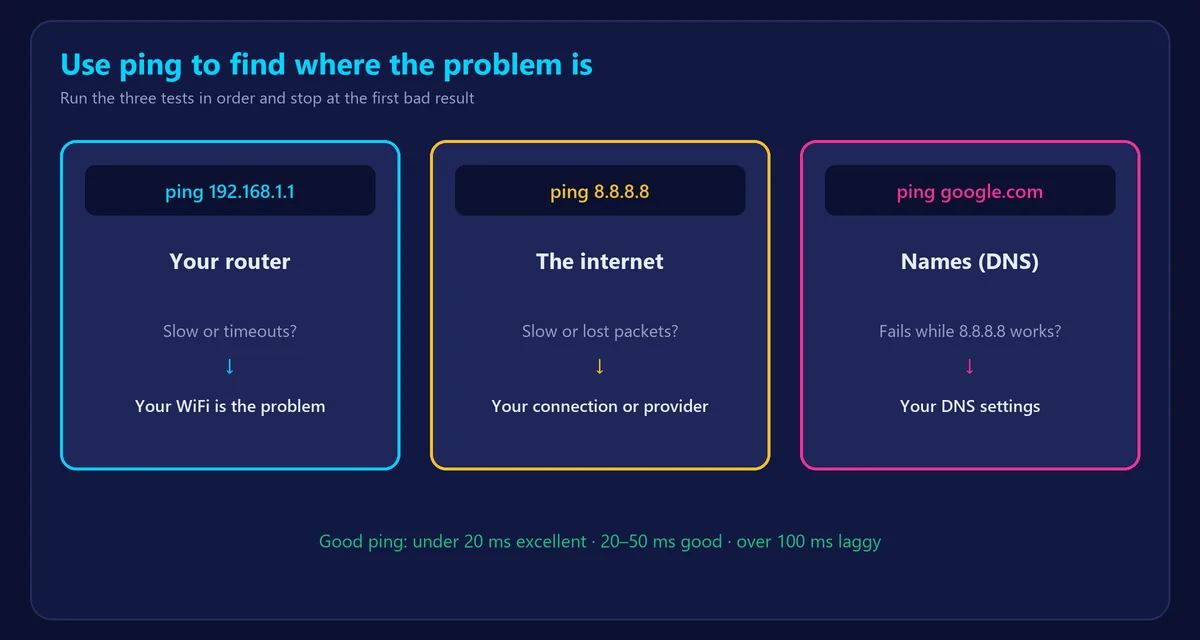
Find out where the problem is
- Ping your router (for example
ping 192.168.1.1 -t). Over WiFi it should stay low, usually a few ms, rarely above 10 ms. Spikes or timeouts here mean the problem is your WiFi, not your provider. Not sure of the address? See 192.168.1.1 router login. - Ping 8.8.8.8. If the router is fine but this is slow or loses packets, the issue is likely your internet connection.
- Ping google.com. If 8.8.8.8 works but names fail, your DNS is the problem. See best DNS servers for speed.
Prefer not to use the command line?
Our online ping test measures ping, jitter and packet loss in your browser, with a clear verdict. If your ping is high, read how to lower ping.
Frequently asked questions
Why does ping say “Request timed out”?
The reply didn’t come back in time. Occasional timeouts are normal; frequent ones point to weak WiFi, a busy connection or a problem with your provider. Some servers also block ping on purpose.
How do I stop ping -t?
Press Ctrl + C. Windows then shows the summary.
Is a lower ping always better?
Yes. Lower and steadier ping means a more responsive connection for games and calls.