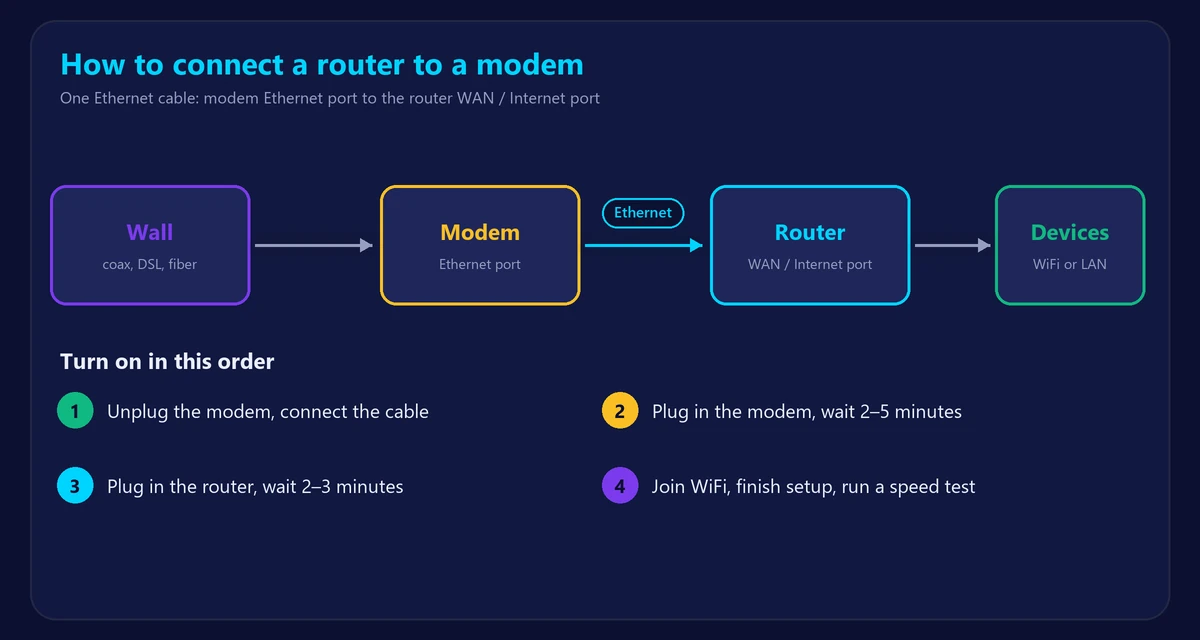
New router out of the box and not sure where the cables go? It’s easier than it looks. To connect a router to a modem, you need one Ethernet cable from the modem to the router’s WAN or Internet port, and then you power on the modem first. This guide walks you through every step, including fiber setups, gateways and what to do if it doesn’t work.
What you need
- Your modem, already connected to the wall (coax, phone line or fiber box)
- Your router and its power adapter
- An Ethernet cable (usually in the router’s box)
- The router’s app or quick-start guide
Not sure which box is which? See modem vs router.
How to connect a router to a modem
- Unplug the modem’s power. If it has a backup battery, remove that as well.
- Connect the Ethernet cable from the modem’s Ethernet port to the router’s WAN or Internet port. This port is often a different color or set apart from the others.
- Plug in the modem and wait 2–5 minutes, until its Online light is solid.
- Plug in the router and wait 2–3 minutes.
- Connect your phone or computer to the WiFi name and password on the router’s label.
- Finish setup in the router’s app or web page: set your own WiFi name, a strong password and a new admin password.
- Test it with our speed test.
Which port is which?
| Port | What plugs in |
|---|---|
| Modem: Coax / DSL / Fiber | The line from the wall |
| Modem: Ethernet | The cable to your router |
| Router: WAN / Internet | The cable from your modem |
| Router: LAN (usually numbered) | Computers, consoles and TVs |
The most common mistake is plugging the modem into a router LAN port. If nothing works, check this first.
Connecting to a fiber box (ONT)
Fiber works the same way. Run an Ethernet cable from the ONT’s Ethernet port to the router’s WAN port. On some fiber connections you may need to enter a username and password (PPPoE) from your provider during router setup.
Adding your own router to a provider gateway
A gateway is already a modem and router in one box. If you plug your own router into it, both will act as routers. This is called “double NAT”, and it can cause problems with gaming and port forwarding. You have two good options:
- Turn on bridge mode (or IP passthrough) on the gateway, so your own router does the routing.
- Set your own router to access point mode, so the gateway keeps doing the routing.
Log in to the device using our router login guide. If you want to use the gateway’s WiFi as well, keep in mind that devices may split across two separate networks.
Router connected but no internet?
- Check that the cable is in the router’s WAN port and clicks into place on both ends.
- Restart in the right order: modem first, wait, then the router.
- Look at the lights. Our guide explains what router and modem lights mean.
- Connect a computer directly to the modem and restart the modem. If that works, the problem is the router or its setup.
- If you replaced a modem, your provider may need to activate the new one, usually through its app or support line.
Devices connected but nothing loads? Follow WiFi connected but no internet.
Where to put the router
The modem has to stay near its wall outlet, but you can use a longer Ethernet cable to move the router to a central, raised and open spot. That alone can improve coverage. More tips in how to boost your WiFi signal.
Frequently asked questions
Which Ethernet cable should I use?
Cat 5e or Cat 6 works for almost every home plan. The cable in the router’s box is normally fine.
Can I connect a router to a modem without a cable?
Usually not. Standalone modems need a wired connection to the router. Gateways have both built in, so no cable is needed between them.
Should I restart the modem or router first?
Turn both off, start the modem first, wait until it’s online, and then start the router.
Do I need to set anything up after connecting?
Yes. Change the WiFi name, the WiFi password and the admin password, and then check for firmware updates.