Your phone is online, the TV is streaming, but your laptop won’t connect to WiFi. Maybe it doesn’t see any networks, maybe it keeps saying “Can’t connect to this network”, or maybe it connects but nothing loads. The good news: when a laptop won’t connect to WiFi but other devices will, the problem is almost always on the laptop itself – and you can usually fix it in a few minutes. Here are 12 fixes for Windows and Mac, starting with the quickest.
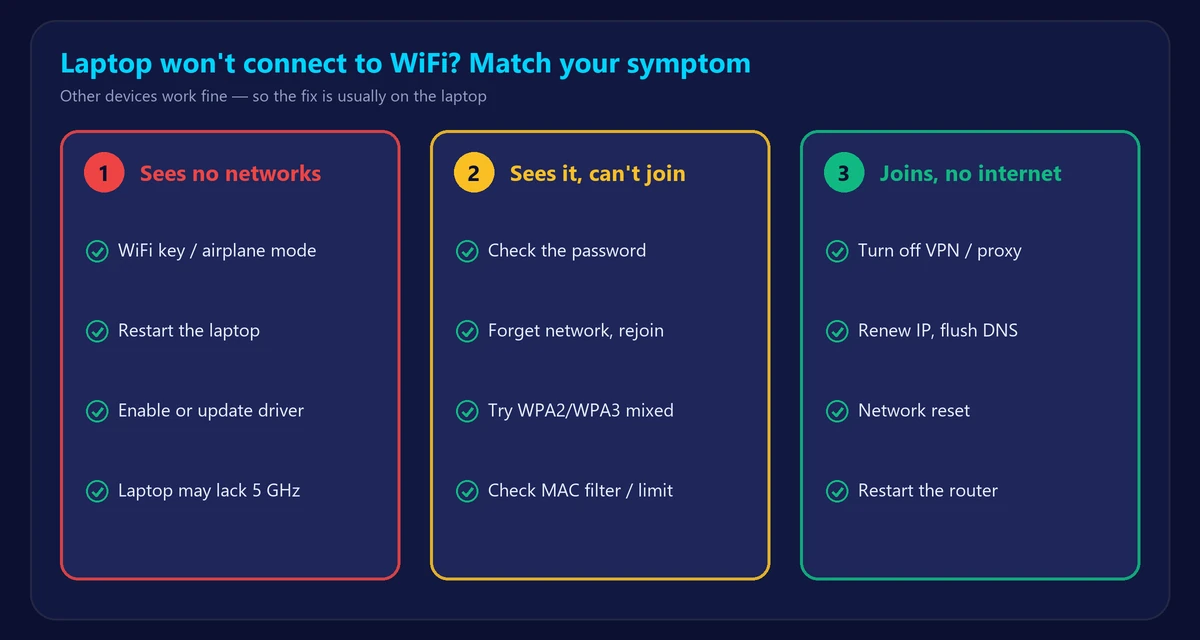
First, which problem do you have?
- The laptop doesn’t see any WiFi networks → WiFi is turned off, in airplane mode, or the WiFi adapter/driver has a problem (fixes 1–2, 7–9).
- It sees your network but can’t join → password, saved settings or a compatibility issue with the router (fixes 3–6, 10–11).
- It connects but has no internet → follow our guide to WiFi connected but no internet.
Quick fixes
1. Check the WiFi switch and airplane mode
Many laptops have a WiFi key (often Fn + a key with an antenna icon) or a physical switch. On Windows, open the Quick Settings panel (bottom-right corner) and make sure WiFi is on and Airplane mode is off. On a Mac, click the WiFi icon in the menu bar and turn WiFi on.
2. Restart the laptop
A full restart (not sleep) reloads the WiFi driver and clears temporary glitches. It fixes more problems than you’d expect.
3. Check the password
WiFi passwords are case-sensitive. If you changed the password recently, the laptop may still be trying the old one – which leads to the next fix.
4. Forget the network and reconnect
- Windows: Settings → Network & internet → WiFi → Manage known networks → select your network → Forget.
- Mac: System Settings → Wi-Fi → click the ••• next to the network → Forget This Network.
Then select the network again and enter the password.
5. Move closer to the router
Laptops often have weaker antennas than phones. If the laptop connects next to the router but not in the bedroom, it’s a coverage problem – see our tips to boost your WiFi signal.
6. Restart the router
Even if other devices work, a router can refuse new connections when its memory is full or it has reached a device limit. Restart it – here’s how to restart or reset your router properly.
Windows fixes
7. Run the network troubleshooter
On Windows 11: Settings → System → Troubleshoot → Other troubleshooters → Network and Internet → Run. On Windows 10: Settings → Update & Security → Troubleshoot. It automatically resets the adapter and fixes common settings.
8. Update or reinstall the WiFi driver
Right-click the Start button → Device Manager → Network adapters. Right-click your WiFi adapter (names usually include “Wireless”, “Wi-Fi” or “802.11”):
- Choose Update driver, or download the latest driver from your laptop maker’s website.
- If that doesn’t help, choose Uninstall device and restart – Windows reinstalls the driver automatically.
Also open the adapter’s Power Management tab and untick “Allow the computer to turn off this device to save power”.
9. Reset network settings
Settings → Network & internet → Advanced network settings → Network reset. Or open Command Prompt as administrator and run:
netsh winsock reset
netsh int ip reset
ipconfig /flushdns
Restart the laptop afterwards. You’ll need to re-enter WiFi passwords.
Mac fixes
10. Use Wireless Diagnostics
Hold the Option key and click the WiFi icon in the menu bar → Open Wireless Diagnostics. It checks your connection and suggests fixes. If the network still won’t connect, remove it from known networks (fix 4) and restart the Mac.
Router compatibility fixes
11. Check the band and security settings
Older laptops may not support 5 GHz or WPA3. If your router uses a single network name for both bands, or WPA3-only security, an old laptop may fail to join. In your router settings, try “WPA2/WPA3 mixed” security and make sure 2.4 GHz is enabled. Learn more in 5GHz vs 2.4GHz WiFi.
12. Check MAC filtering and device limits
Some routers and parental-control apps block unknown devices or limit how many can connect. Check the router’s device list – our guide on who is using my WiFi shows where to find it.
Still not working?
Try a cheap USB WiFi adapter or an Ethernet cable. If the laptop works with them, its built-in WiFi card may be faulty. Once you’re connected, run our speed test to make sure the connection is healthy. If it connects but keeps dropping, read why your WiFi keeps disconnecting.
Frequently asked questions
Why won’t my laptop connect to WiFi but my phone will?
Because the problem is on the laptop: saved network settings, the WiFi driver, power-saving features, or a band/security setting the laptop doesn’t support.
Why does my laptop say “Can’t connect to this network”?
Usually a wrong saved password or corrupted network profile. Forget the network and reconnect, then update the WiFi driver if it continues.
Why can’t my laptop see my WiFi network?
The laptop may not support the band your router uses (often 5 GHz on older laptops), the WiFi adapter may be disabled, or the router may be hiding its network name.
How do I turn WiFi back on if the option is missing?
Open Device Manager, check whether the WiFi adapter is disabled (right-click → Enable device), or reinstall its driver.