Your laptop and TV are online, but your phone won’t connect to WiFi. It keeps failing, asks for the password again or shows “Unable to join”. When other devices work, the problem is usually on the phone: saved settings, a VPN or a privacy feature. These fixes work for both iPhone and Android, starting with the quickest. Menu names can vary slightly by phone and software version.
Quick fixes to try first
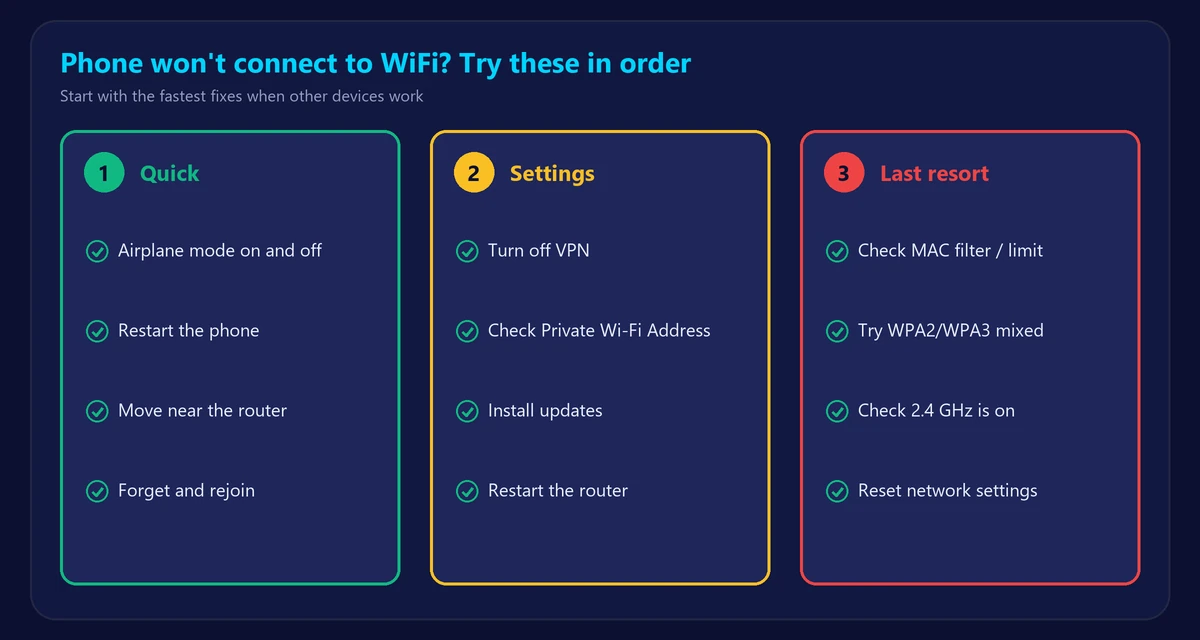
1. Turn WiFi off and on, then try airplane mode
Turn on airplane mode for 10 seconds, turn it off, and make sure WiFi is on. This restarts the phone’s radios.
2. Restart your phone
A full restart clears temporary glitches and is often all you need.
3. Move closer to the router
Phones can see a network but fail to join when the signal is weak. Try again in the same room as the router.
4. Forget the network and reconnect
- iPhone: Settings → Wi-Fi → tap the (i) beside the network → Forget This Network.
- Android: Settings → Network & internet (or Connections) → Wi-Fi → your network → Forget.
Then select the network and type the password again. If it says the password is wrong, check upper and lower case carefully, or look at the password on the router’s label if it was never changed.
5. Turn off VPN and security apps
A VPN or security app can block the connection or make it look broken. Turn it off and try again.
If it still won’t connect
6. Check Private Wi-Fi Address
Phones can use a random address on each network. Some routers with device filtering or parental controls block unfamiliar addresses. On iPhone, look under the network’s (i) settings. On Android, look for Privacy or MAC address type. Try switching this setting for your own home network only. Learn more in WiFi privacy warning.
7. Install software updates
Update your phone, as WiFi bugs are often fixed in system updates.
8. Restart the router
A router can refuse new devices even when connected ones keep working. Here’s how to restart or reset your router.
9. Check the router’s settings
- Device limit or MAC filter: your phone may be blocked. See who is using my WiFi to find the device list.
- Security mode: older phones may not support WPA3 only. Try “WPA2/WPA3” mixed mode.
- Band: an older phone may not support 5 GHz or 6 GHz. Make sure 2.4 GHz is on. See how to check your WiFi band.
To change these, use our router login guide.
10. Reset network settings
This erases saved WiFi networks, Bluetooth pairings and VPN settings, so try it last.
- iPhone: Settings → General → Transfer or Reset iPhone → Reset → Reset Network Settings.
- Android: Settings → System → Reset options → Reset WiFi, mobile & Bluetooth. The location varies by brand.
Connected, but no internet?
If your phone joins the network but nothing loads, the problem is different. Follow WiFi connected but no internet. On public WiFi, you may need to open a browser and accept a login page first.
Keeps connecting and disconnecting?
Read why your WiFi keeps disconnecting. Once you’re back online, you can confirm everything works with our speed test.
When it may be a hardware problem
If your phone can’t join any WiFi network, including a friend’s or a public one, even after a network reset, its WiFi hardware may be at fault. Back up your phone and contact the manufacturer or a repair shop.
Frequently asked questions
Why does my phone say it can’t join the network?
Usually because of a saved connection problem, a wrong password or a router restriction. Forget the network, restart both devices and try again.
Why won’t my phone connect to WiFi but other devices will?
The router is working, so check the phone: VPN, Private Wi-Fi Address, saved settings and software updates.
Why does my WiFi keep turning off on my phone?
Battery-saving modes, automation routines or a software bug can do this. Check those settings and install updates.
Will resetting network settings delete my photos?
No. It only removes network-related settings such as saved WiFi networks and Bluetooth pairings.