You open WiFi settings on your iPhone or iPad and see a yellow “Privacy Warning” under your network’s name. It sounds alarming, but in most cases it’s an easy setting to change – and it doesn’t mean someone has hacked your WiFi. This guide explains what the WiFi privacy warning means, the two different messages behind it, and how to fix each one.
What the WiFi privacy warning means
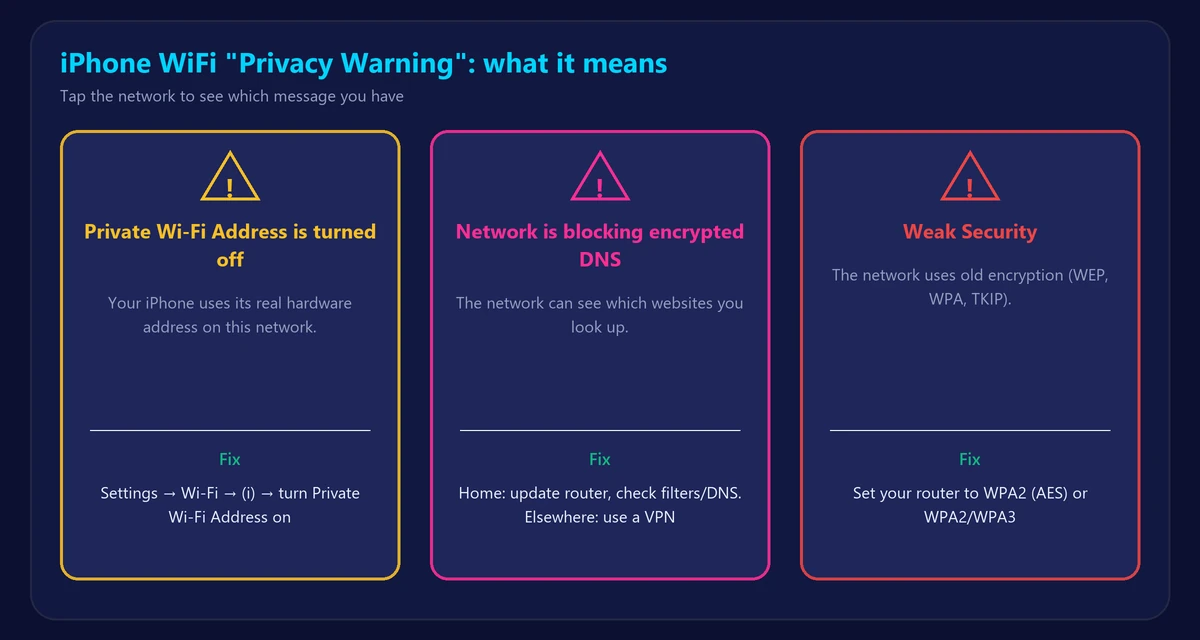
Apple shows this warning when something about the network makes it easier to track your device or see what you’re doing online. Tap the network (or the ⓘ button) to see which message applies. There are two common ones:
- “Private Wi-Fi Address is turned off for this network.”
- “This network is blocking encrypted DNS traffic.”
A third, different label – “Weak Security” – means the network uses outdated encryption. We cover all three below.
Fix 1: “Private Wi-Fi Address is turned off”
Every device has a hardware address (MAC address). To make tracking harder, iPhones normally use a different “private” address for each network. The warning appears when this feature is turned off for the network you’re on.
How to fix it:
- Open Settings → Wi-Fi.
- Tap the ⓘ next to the network.
- Turn on Private Wi-Fi Address (on newer iOS versions, choose Fixed or Rotating instead of Off).
- Rejoin the network if asked.
When to leave it off: some home routers use your device’s address for parental controls, MAC filtering or a reserved IP address. If turning the private address on breaks one of those, it’s fine to leave it off on your own trusted home network.
Fix 2: “This network is blocking encrypted DNS traffic”
When you visit a website, your device first looks up its address using DNS. Newer iPhones can encrypt these lookups so the network can’t see which sites you visit. This message means the WiFi network is blocking that encryption, so your DNS lookups are visible to the network.
Common causes:
- Your router or provider gateway has a security, parental-control or ad-blocking feature that filters DNS.
- Old router firmware that doesn’t handle encrypted DNS properly.
- A school, office, hotel or café network that intentionally filters traffic.
How to fix it on your home network:
- Restart the router and update its firmware.
- Log in to the router (see our router login guide) and check features such as web filtering, “safe browsing”, parental controls or DNS protection. Turning these off or changing them often removes the warning.
- Consider switching the router’s DNS server to a provider that supports encrypted DNS, such as Cloudflare (1.1.1.1) or Google (8.8.8.8) – see the best DNS servers.
On networks you don’t control (work, school, public WiFi), you can’t change the setting. There, a VPN is the practical way to keep your browsing private, because it encrypts all of your traffic – DNS included – before it leaves your device.
What about “Weak Security”?
“Weak Security” means the network uses outdated encryption such as WEP, WPA or WPA2 with TKIP. On your own router, change the security mode to WPA2 (AES) or WPA2/WPA3 in the WiFi settings. On public networks, avoid entering passwords or payment details unless you use a VPN – read is public WiFi safe?
Is the privacy warning dangerous?
Not by itself. It’s a heads-up, not a sign of a hack. On your own home network, the risk is low. On public WiFi, take it more seriously: it means the network can see more about your device and the sites you visit. If you also want to keep your IP address private, see how to hide your IP address.
Does Android show a privacy warning?
Android doesn’t show the same label, but it has the same protection: in the network’s settings, look for Privacy → Use randomized MAC. Android can also use Private DNS (Settings → Network & internet → Private DNS) to encrypt lookups.
Frequently asked questions
Why does my WiFi say privacy warning on my iPhone?
Either Private Wi-Fi Address is turned off for that network, or the network is blocking encrypted DNS. Tap the network to see which message applies.
How do I get rid of the privacy warning on my home WiFi?
Turn on Private Wi-Fi Address for the network, and if the message is about encrypted DNS, update the router and check its filtering or DNS settings.
Does the privacy warning slow down my internet?
No. It doesn’t affect speed. You can check your connection anytime with our speed test.
Has someone hacked my WiFi?
The warning doesn’t mean that. If you’re worried about unknown devices, check who is using your WiFi.