Frozen video calls, slow file uploads and a VPN that drops at the worst moment – working from home puts different demands on your connection than streaming or browsing. So what internet speed for working from home do you really need? For one person, 50–100 Mbps download and at least 10–20 Mbps upload is comfortable. But upload speed, latency and stability matter as much as the headline number. This guide explains what each work task needs and how to make your home office connection reliable.
Recommended internet speed for working from home
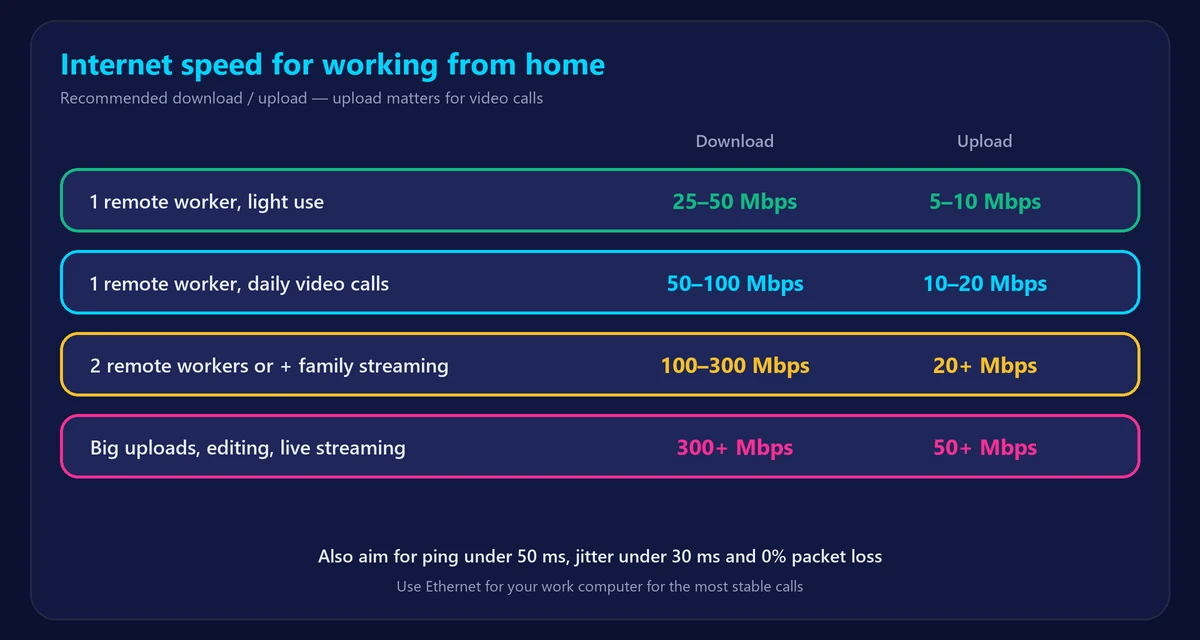
| Household | Download | Upload |
|---|---|---|
| 1 remote worker, light use (email, chat, calls) | 25–50 Mbps | 5–10 Mbps |
| 1 remote worker with daily video calls | 50–100 Mbps | 10–20 Mbps |
| 2 remote workers, or 1 + family streaming | 100–300 Mbps | 20+ Mbps |
| Large file uploads, video editing, live streaming | 300+ Mbps | 50+ Mbps (fiber ideal) |
Want a personal estimate? Use our internet speed calculator.
What common work tasks need
| Task | Download | Upload |
|---|---|---|
| Email, Slack, web apps | 1–5 Mbps | 1 Mbps |
| HD video call (Zoom, Teams, Meet) | 2–4 Mbps | 2–4 Mbps |
| Screen sharing | 1–3 Mbps | 1–3 Mbps |
| Company VPN | Adds 10–20% overhead | Adds 10–20% overhead |
| Uploading large files / cloud backups | – | As much as possible |
Video calls send video in both directions, so they use roughly as much upload as download. That’s why many cable plans with fast downloads but only 5–10 Mbps upload still struggle when several people are on calls at once.
Why upload speed matters more for remote work
At home, most people only notice download speed. At work-from-home time, upload carries your face on video calls, your shared screen, and every file you send to the office or the cloud. A 300 Mbps plan with 10 Mbps upload can feel slower for remote work than a 100/100 Mbps fiber plan. Learn more in what is a good upload speed and, if yours seems low, why your upload speed is so slow.
Latency and jitter: the hidden call killers
Calls freeze and voices sound robotic when ping is high or unstable – even on fast plans. Aim for:
- Ping under 50 ms
- Jitter under 30 ms
- 0% packet loss
Check yours with our ping test, and read what jitter is if calls keep stuttering.
How to test your home office connection
- Run our speed test from your work laptop, at your desk, during working hours.
- Run the ping test a few times, especially before important calls.
- Repeat with the laptop next to the router. A big difference means a WiFi coverage problem, not a slow plan.
7 ways to make your work-from-home internet more reliable
- Use an Ethernet cable for your work computer – the single biggest improvement for calls. See Ethernet vs WiFi.
- Put your desk close to the router, or add a mesh node in your office. Check your WiFi signal strength there.
- Use 5 GHz WiFi if you can’t use a cable.
- Enable QoS on your router to prioritize video calls.
- Schedule big uploads and backups outside meeting times.
- Restart the router weekly and keep its firmware updated.
- Have a backup: your phone’s hotspot can rescue a call if your main internet goes down.
Frequently asked questions
Is 100 Mbps enough to work from home?
Yes for one or two remote workers, as long as upload is at least 10–20 Mbps. See is 100 Mbps fast? for details.
How many Mbps do I need for Zoom?
About 3–4 Mbps up and down for a 1080p HD call. Group calls and screen sharing add a little more.
Is 25 Mbps enough for working from home?
For one person with light use, it can work, but upload is often too low on such plans and there’s little headroom for the rest of the household.
Why do my video calls freeze with fast internet?
Usually because of WiFi interference, high jitter or low upload speed – not download speed. Use a cable and check your ping and jitter.